Is It Safe to Give Remote Access for Android Repair?
Is it safe to give remote access for Android repair? Yes — here's exactly what we can see, what we can't, and why remote is safer than a random local shop.
Table of Contents
- What “remote access” actually means on Android
- What we can see during a remote session
- What we cannot see during a remote session
- What you should do before any remote session
- What happens when the session ends
- Remote repair vs local shop — the side-by-side comparison
- Real privacy incidents — what we have actually seen
- Red flags to watch for from any remote repair service
- Specific privacy concerns by user type
- Parents and family fleet managers
- Small business owners and freelancers
- Journalists, activists and high-risk users
- Regular consumers
- Regional context — South Asia and consumer recourse
- What we guarantee in writing
- When to call a professional
The single most common question we get from new customers is: “How do I know it’s safe?” It is a fair question — handing temporary control of your phone to a stranger over the internet sounds risky in the abstract. The honest answer, after three years and 160+ remote sessions: it is significantly safer than the realistic alternatives, provided you understand the actual mechanism and follow a few common-sense steps. This guide explains exactly what we can and cannot see, what privacy protections are in place, what happens after the session ends, and a side-by-side comparison with the riskier alternative most people default to (a random local repair shop).
What “remote access” actually means on Android
Remote access for Android repair is not “we have access to your phone forever from now on.” It is a specific, time-limited, app-mediated screen share plus optional ADB command execution.
The components:
- A screen-sharing app you install yourself from the Play Store (AnyDesk or TeamViewer QuickSupport). This app generates a random session code each time you open it. You share that code with us. We use it to connect. You see a connection prompt on your phone and have to approve it before any screen share starts.
- Android Debug Bridge (ADB) if the work requires low-level system commands. ADB requires USB debugging to be enabled in Developer options (you do this), the phone to be on the same network as our computer (or connected via USB), and an on-device authorisation prompt that you accept on first connection.
That is the entire access surface. There is no hidden process, no background service, no separate channel. When you uninstall the screen-share app and disable USB debugging, the access is gone — bit-perfect, completely.
What we can see during a remote session
To be specific:
- Your screen, exactly as you see it. If a menu is open, we see the menu. If you switch to a different app, we see the different app. If your screen is locked, we see only the lock screen.
- Whatever ADB system commands return. Things like Android version, model number, battery health, installed app list (package names only, not contents), storage layout, bootloader state, system logs.
- Touch input we send. When we tap something via the remote session, you see the tap happen on your screen. You can deny any tap by simply doing your own tap to dismiss the action.
What we cannot see during a remote session
- Photo gallery contents unless you actively open the gallery app on screen.
- SMS or messaging app contents unless you open them on screen.
- Saved passwords in any password manager — these are encrypted in app-private storage that no remote-access app can read.
- Banking app sessions — banking apps detect screen mirroring and either blank their screens or refuse to operate. This is a feature of the banking apps, not the remote-access app.
- Contacts, except whatever appears in dialer view if you happen to open the dialer.
- Email content unless you open the email app on screen.
- Browser history, bookmarks, autofill data.
- Anything in encrypted folders like Samsung Secure Folder or Xiaomi Second Space.
The pattern: if you do not open it during the session, we never see it.
What you should do before any remote session
Best practices we recommend to every customer:
- Close all sensitive apps — banking, email, password manager, social media DMs, photo gallery — before you share your screen.
- Enable Do Not Disturb so personal notifications do not pop up while we are connected.
- Move sensitive widgets off the home screen temporarily (e.g. the weather widget that shows your location, the calendar widget that shows your appointments).
- Optionally, use a guest Google account for the duration of the session. For most work this is not needed, but it is an option for the privacy-conscious.
- Optionally, screen-record the session using your phone’s built-in screen recorder. Start before you connect, stop when we disconnect.
Doing these takes 2 minutes and removes essentially every realistic privacy concern.
What happens when the session ends
The instant you tap disconnect or uninstall the screen-share app:
- The screen mirror stops immediately
- Any pending touch inputs from us are dropped
- No background service remains running
- ADB session terminates if it was active
- No way to reconnect without a brand-new session code generated by you
For full hygiene, after the repair is complete you should:
- Uninstall AnyDesk or TeamViewer from the Play Store
- Disable USB debugging in Developer options (Settings → Developer options → toggle off)
- Optionally disable Developer options entirely (Settings → Apps → Developer options → Storage → Clear data)
After these three steps, the device’s state with respect to remote access is identical to its state before the repair began.
Remote repair vs local shop — the side-by-side comparison
Most people who ask “is remote safe?” are weighing it against the alternative of taking the phone to a local repair shop. Here is the honest comparison:
| Aspect | Remote Repair | Local Repair Shop |
|---|---|---|
| You watch every action | Yes — live screen view | No — phone is in their possession unsupervised |
| Can terminate at any moment | Yes — tap disconnect, no conflict | Possible but awkward; sometimes phone already disassembled |
| Physical possession of unlocked device | Never | Hours, sometimes days |
| Access to your photos / messages / accounts | Only what's on screen during session | Full physical access to everything |
| Tooling auditable | Yes — open-source ADB, well-known apps | Proprietary in-house tools; no visibility |
| Travel time | Zero | 30-90 minutes round trip typically |
| Wait time | Often same day | Often next day or longer |
| Hardware repairs (screen, battery) | Not possible — must be in-person | Possible — this is local's main advantage |
| Quality variance | Verifiable via reviews and live observation | Highly variable, hard to verify before commitment |
| Privacy guarantee | Technical (you watch) + uninstall ends access | Trust-based only |
| Average price | Lower (no overhead) | Higher (rent, staff, equipment) |
The pattern: remote repair is technically and procedurally safer than local repair for every category except physical hardware work. Most people’s intuition that “having someone in front of me feels safer” is actually backwards — the local shop has unsupervised offline access to your unlocked device for hours; the remote technician has supervised online access to your screen for an hour.
Real privacy incidents — what we have actually seen
In three years of operation, the privacy incidents we are aware of in the Android repair industry:
- Local shop incidents — multiple documented cases globally of local repair shop staff copying customer photos, accessing accounts, or installing tracking software during physical repair. These make the news every few months. The shops involved typically had no live monitoring and the customer only discovered the problem days or weeks later.
- Remote repair incidents — we are aware of zero documented cases involving the AnyDesk + ADB pattern we use, in the legitimate remote-repair industry. The closest are scam-call schemes where attackers convince elderly users to install AnyDesk and then guide them to log into banking apps on screen — these are social engineering against the user, not technical exploits of remote-access apps. The defense is: never install remote access in response to an unsolicited call; only initiate the install yourself when you have already chosen a service provider.
The asymmetry exists because remote-access apps are built with strong consent mechanisms: every connection requires active approval, every session is visible, and disconnection is one tap away.
Red flags to watch for from any remote repair service
Even with the technical safety of remote repair, you should walk away from any service that:
- Asks you to install an app from outside the Play Store (a sideloaded APK has no Google review and can do whatever it wants).
- Asks for your Google account password, banking app credentials, or 2FA seeds in chat. Legitimate work never requires these.
- Pressures you to start the session “right now” without quoting a price first. Legitimate services quote, you confirm, then connect.
- Refuses to let you screen-record the session when asked. This is a free, reasonable request and should not be refused.
- Does not give you a written list of what was done at the end of the session.
- Wants payment before any work is done. Legitimate services do paid work after the diagnosis is complete and you have agreed to proceed.
Specific privacy concerns by user type
Different users have different threat models. Here is how remote repair actually plays out for the four groups who ask about it most.
Parents and family fleet managers
If you handle phones for elderly parents, kids, or extended family, the concern is usually whether grandma’s photos and family chats stay private. Practical answer: completely safe with the standard precautions. Close the gallery and messaging apps before sharing screen, enable Do Not Disturb so personal notifications do not pop up, and verify before-and-after that the device’s apps still work normally. The session-based access model means there is no ongoing exposure after the repair is done.
Small business owners and freelancers
If your phone is also your work device — accounting apps, client emails, business banking — the concern is professional reputation if anything goes wrong. Practical answer: optionally use a guest Google account for the duration of the session if your primary account has high-value business apps, and screen-record the session so you have an auditable record. For routine work like a single-app crash diagnosis, this overhead is unnecessary; for higher-stakes work like a full root install, it is reasonable extra hygiene.
Journalists, activists and high-risk users
If you have specific surveillance concerns (sources, sensitive contacts, political activity in restrictive regions) the threshold is higher. Practical answer: do remote repair on a secondary device, never your primary working phone. Use a fresh Google account for the secondary device. Boot the device cleanly, do the repair, then use the device for its specific purpose without re-introducing your primary identity. The cost of a $150 secondary Android against the cost of a primary-device compromise is trivial.
Regular consumers
The vast majority of customers fall here — phone broken, want it fixed, have nothing especially sensitive on it beyond ordinary daily use. Practical answer: standard precautions are plenty. Close your banking app and gallery before sharing screen, enable Do Not Disturb, watch the session, uninstall the app afterwards. This is the same level of caution you would apply when handing your phone to a friend for a few minutes.
Regional context — South Asia and consumer recourse
A specific concern we hear from customers in Bangladesh, India and Pakistan: “If something goes wrong, what is my recourse?” The honest regional context:
- Bangladesh — consumer protection law (Consumer Rights Protection Act 2009) covers service contracts, including digital services. The National Consumer Rights Protection Directorate accepts complaints in Bangla and English; documented chat history of the service agreement plus screen-recording of the session is solid evidence. We are based in BD and operate under this regime.
- India — Consumer Protection Act 2019 covers digital services explicitly. e-Consumer Commission handles online-service disputes; jurisdiction follows the consumer’s location, not the provider’s, which is favourable to the customer.
- Pakistan — Punjab Consumer Protection Act and similar provincial laws cover services. Documentation requirements are similar — keep the chat thread and any session recording.
- UK and EU customers — Consumer Rights Act 2015 (UK) and the EU Consumer Rights Directive give strong service-quality and refund rights for digital services across borders.
In every case the documentary evidence we provide voluntarily — written quote, written summary of work done, chat history with timestamps — already satisfies the documentation requirements for any consumer-protection complaint. We provide it because it is good practice, not because we expect to need it.
What we guarantee in writing
For every remote repair session at Droid Rooter:
- You install the screen-share app yourself from the Play Store. We never send a sideloaded APK.
- We never ask for your Google password, banking credentials, or 2FA seeds.
- You can screen-record the session. We encourage it.
- We send a written summary of every action taken, the firmware/Magisk versions used, and any backup files we created during the session.
- You can terminate the session at any moment without explanation.
- See our repair guarantee post for the no-fix-no-pay policy in detail.
When to call a professional
If you have read this and feel reassured but want to ask specific safety questions before booking — message us on WhatsApp or Telegram. We will answer every question honestly, including ones we cannot do. See our services overview for what we cover.
Frequently Asked Questions
Can a remote technician steal my data through AnyDesk or TeamViewer?
Not silently, no. AnyDesk and TeamViewer's mobile apps for Android run as standard user-permission apps — they can mirror your screen and execute taps you would have to authorise, but they cannot silently scrape your photo gallery, read your SMS, or copy your contacts in the background. There is no Android API that lets a regular Play Store app do that without active user interaction. The single risk vector is what is on screen during the session — close sensitive apps before you share, and you remove that vector entirely.
What if the technician keeps remote access after the repair is done?
Not technically possible with the way AnyDesk and TeamViewer's mobile apps work — the session ends when you tap disconnect, when you close the app, or when you uninstall it. There is no scheduled background service, no persistent connection, and no way to re-connect without you running the app and approving a brand-new session code. Uninstalling the app after the repair removes every trace; for extra paranoia, you can also disable USB debugging in Developer options.
Is it safer to take my phone to a local repair shop instead of remote?
Statistically, no. Local shops have your unlocked phone in their physical possession for hours with full physical access to whatever they want — gallery, accounts, saved passwords. Most are honest, but you have no way to watch what they actually do. Remote repair gives you a live screen view of every single action and the ability to terminate at any moment. The one case where local is actually better: hardware repair (screen, battery, charging port) which remote cannot do.
Do I need to give my passwords or 2FA codes during remote Android repair?
Almost never. The vast majority of remote work — bootloader unlock, root install, FRP bypass with proof-of-ownership, performance tuning, app crash diagnosis — does not need any password from you. The rare exceptions: re-signing into Google after a factory reset (you type the password yourself, we look away from the screen), or unlocking a Mi Account where you provide proof of ownership and Xiaomi's official recovery flow handles the password (we never ask for it directly).
What happens if I lose internet or power during a remote Android session?
For most work it is no issue — the AnyDesk session reconnects automatically when your internet comes back, ADB picks up where it left off, and we resume from wherever we were. The one risk window is during a firmware flash (10 to 60 seconds when the phone is being written to). If power or USB drops during a flash, the device may need to enter EDL or download mode to recover; we always discuss this specific risk before starting flash-based work and have brand-by-brand recovery procedures ready.
Can I record the remote Android repair session for my own records?
Yes, absolutely. Your phone has a built-in screen recorder (in quick settings on most modern Android skins). Start the recording before the session, stop it when we disconnect, and you have a complete video record of everything that happened on your device. Many of our customers do this for higher-value jobs and we encourage it — it is in our interest as much as yours that there is no ambiguity about what was done.
More Android Guides
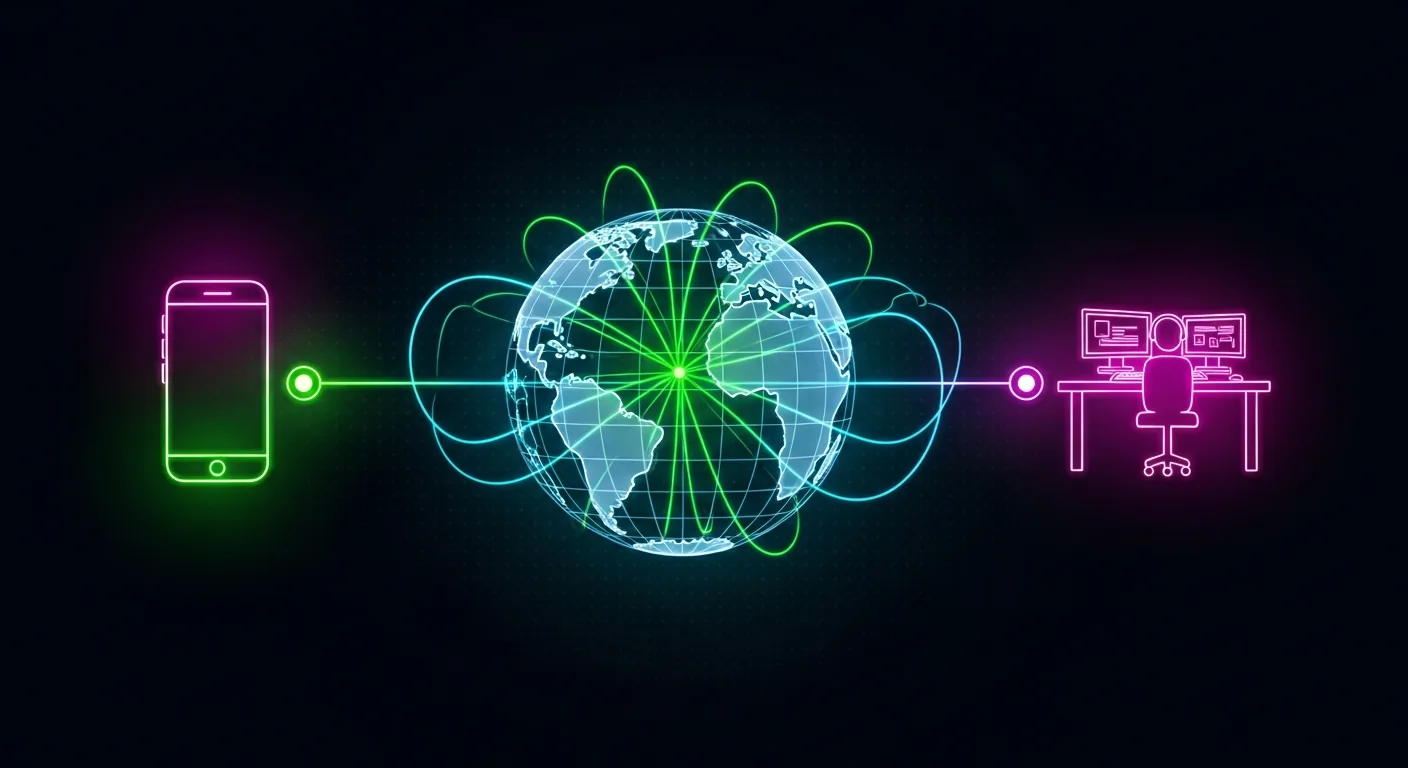
How Remote Android Repair Works — Step by Step Walkthrough
What 'remote Android repair' actually means — the tools we use, what we can and cannot see on your screen, a real session walkthrough and how to prepare.
Read More → What If Android Repair Fails? Our Guarantee Explained
What happens if our Android repair doesn't work? Free re-attempt, alternative method, then full refund — you only pay if your device is fully fixed.
Read More →
Android Root Service for Business: Bulk & Kiosk Mode
Android root service for business — bulk rooting for kiosks, gaming cafés, MDM and digital signage with discounted per-device pricing for 3+ devices.
Read More →