Android Notifications Only Arrive When You Unlock? Samsung and Pixel Fixes
Quiet phone, then a flood of messages? Find out whether your alerts are delayed, silent or hidden, and follow the checks that match your Samsung or Pixel.

Table of Contents
- First, identify which kind of late you have
- Samsung: inspect sleeping apps and notification categories
- Pixel: test the affected app's background access
- Check Modes when messages arrive but alerts disappear
- If Gmail is the only app affected
- Compare Wi-Fi with mobile data
- Why unrestricted battery use may not solve everything
- Keep a tiny test log
- Frequently asked questions
- Should I disable battery optimization for every app?
- Does unlocking the phone prove that Doze caused the delay?
- Will clearing app data fix delayed notifications?
- Can Droid Rooter help without rooting my phone?
- Sources and review notes
Your phone stays suspiciously quiet. You unlock it, and suddenly everyone wants your attention—along with an email that arrived twenty minutes ago. Before changing a dozen settings, find out whether the message arrived late, the alert stayed silent, or the lock screen simply hid it.
Start with the affected app's notification permissions, background battery and data settings, then check Samsung sleeping apps or Pixel Modes. Test one change at a time with the screen locked. An app that catches up only when opened needs a different investigation from one that receives messages promptly but makes no sound.
First, identify which kind of late you have
Ask someone to send a harmless test message while your screen is locked. Record when they sent it, when your phone alerted, and whether opening the app was necessary. Use ordinary text, not a password or verification code. Repeat with a second app so you know whether the problem follows one service.
| What you notice | Start here | What the observation does not prove |
|---|---|---|
| The notification is already in the shade, but there was no sound | Sound, notification categories, and Modes | That message delivery was delayed |
| Alerts appear when you unlock, without opening the app | Background restrictions and lock-screen display settings | That every delayed alert has the same cause |
| Messages load only after opening one app | That app's sync, battery, and data permissions | That your whole phone needs resetting |
| Several apps fail on mobile data but work on Wi-Fi | Data Saver and background mobile data | That the apps are broken |
| Several apps fail only on one Wi-Fi network | Compare another trusted connection | That battery optimization is responsible |
For a useful comparison, keep the app, sender, and waiting time the same. If you swap networks and change battery settings together, you might solve the symptom without learning which change helped.
Samsung: inspect sleeping apps and notification categories
Samsung has several controls that sound similar but do different jobs. Its battery guidance explains that sleeping apps may have delayed updates; deep sleeping apps do not run in the background and receive updates or notifications when opened.
Search Settings for Background usage limits. Depending on One UI, it may sit under Battery or Device care > Battery. Look in Sleeping apps and Deep sleeping apps for the affected application. Remove that application from the list, reopen it, and repeat your locked-screen test. If automatic sleeping keeps returning, check the Never auto sleeping apps list. Use an exception for an app you need, then monitor battery use.
An app can also be allowed to notify while an individual notification category is silent. Samsung's notification troubleshooting guide gives these checks:
- Open Settings > Notifications > App notifications and select the affected app. Confirm that notifications are allowed.
- If categories are hidden, find Notifications > Advanced settings and enable Manage notification categories for each app.
- Return to the app's notification categories. Inspect the category for messages, mail, or calls, including its alert and sound settings.
- If the alert is visible but silent, check notification volume and Accessibility > Hearing enhancements > Mute all sounds.
Menu names vary by software version. Search for the setting's name if your phone uses a different path. There is no benefit in hunting a missing menu from somebody else's screenshot.
Pixel: test the affected app's background access
Open Settings > Apps > See all apps > the affected app > App battery usage. Check Allow background usage. Where your version offers Optimized and Unrestricted options, try Unrestricted for that app as a comparison, then repeat the same test.
Google notes that Adaptive Battery can delay notifications, but also recommends keeping battery optimization enabled for normal use. Treat the exception as a targeted experiment. If it makes no difference, restore the previous setting; if it helps, compare battery consumption over normal use before keeping it.
Check whether Battery Saver is active during the failure. Record that state in your test notes. A result obtained with the phone charging is not directly comparable with a result obtained while it sits idle on battery.
Also check unused-app management. Android can pause background activity and notifications for apps you have not used for a long time. If an occasional but important app is affected, open its App info and inspect the setting for pausing activity when unused.
Check Modes when messages arrive but alerts disappear
On Pixel, open Quick Settings and inspect Modes, including Do Not Disturb and Bedtime. Then check the relevant mode's notification filters and automatic schedule. Google's Modes guide explains how to allow particular apps or people through and control which filtered notifications remain visible.
Turn the active mode off for a comparison, then restore it with the exceptions you actually want. A bedtime schedule accidentally covering your morning commute can look surprisingly like an unreliable messaging app.
Digital Wellbeing's Focus mode is another distinct setting: paused apps cannot send notifications while it is active. Check its schedule if alerts fail at predictable times. On Samsung, inspect Do not disturb and any routines you have configured.
If Gmail is the only app affected
Start inside Gmail, not with a phone-wide reset. In Gmail's menu, open Settings and choose the affected account. Each account has its own controls. Check Email notifications and make sure Sync Gmail is enabled.
If only some messages lack alerts, inspect Manage labels. Google explains that label notifications require message syncing; High priority only also intentionally limits which emails generate alerts. A message arriving in a category you do not notify for is different from a message arriving late.
Compare a newly sent email in the web inbox with Gmail on the phone. If the phone's inbox itself stays stale until refreshed, follow Google's Gmail sync troubleshooting, including connectivity and storage checks. Avoid clearing app storage as your first move: first establish whether the missing content exists safely in the account.
For WhatsApp or another messaging app, use the same distinction: one muted conversation, all alerts from one app, or several unrelated apps. Check the app's own notification settings and confirm it is updated before changing system-wide options. For Google Messages stuck registering your number, use our separate RCS setup guide.
Compare Wi-Fi with mobile data
On Pixel, Settings > Network & internet > Data Saver shows whether background mobile traffic is restricted. Google explains that Data Saver normally limits background data to Wi-Fi. The Unrestricted data list lets you make an exception for a necessary app.
Try the same locked-screen test once on Wi-Fi and once on mobile data, if your plan permits. Note any VPN or filtering service that is active. Follow your organization's policy on managed work phones; give the administrator the comparison results if you cannot change the connection settings yourself.
If the problem follows one Wi-Fi network, continue with our Android Wi-Fi troubleshooting guide. A new eSIM with no working mobile connection belongs in the eSIM activation checks, before notification settings enter the picture.
Why unrestricted battery use may not solve everything
Android's Doze mode postpones some background network work while the phone is idle. App developers choose how to deliver time-sensitive messages; Google's Doze and App Standby documentation describes high-priority messaging for notifications that need prompt delivery.
That means a user setting cannot guarantee that an app's server sends promptly or that its delivery code behaves correctly. If one app keeps failing across networks after the relevant checks, report it to that app's developer with the device model, Android version, app version, and test times. Persistent failures across unrelated apps deserve a phone-vendor report.
Keep a tiny test log
Use this example layout; the blank results are yours to fill in. For a first comparison, leave the phone untouched for 10–15 minutes before the sender sends the message. Repeat later with the longer idle period that normally exposes your issue. A quick test can miss an intermittent problem.
| Test | Network and phone state | Single change | Sent / alert time |
|---|---|---|---|
| Baseline | Locked, unplugged, usual network | None | Record both |
| App test | Same as baseline | One app setting | Record both |
| Network test | Locked, unplugged, alternate network | Network only | Record both |
Keep a change when it helps repeatably. If battery life then suffers, review the exception alongside our battery drain guide. You want your messages on time and enough battery to read them.
Frequently asked questions
Should I disable battery optimization for every app?
Start with the affected app. Google warns that unrestricted background activity can increase battery use. If a targeted exception does not improve your repeat test, restore the previous setting.
Does unlocking the phone prove that Doze caused the delay?
No. Unlocking can coincide with renewed background activity, but notification visibility, app sync, and network restrictions can produce similar symptoms. Use the symptom table and compare one change at a time.
Will clearing app data fix delayed notifications?
It is not a reliable first step and can remove local settings or app data. Check permissions, sync, and background restrictions first. Follow the app's backup and support instructions before a reset or reinstall.
Can Droid Rooter help without rooting my phone?
These checks use normal Android settings and do not require root. If you need help interpreting the results, contact Droid Rooter with your model, software version, affected apps, and a short test log. Leave private message contents out of the log.
Sources and review notes
Guidance reviewed September 15, 2026. The test sequence is an editorial diagnostic method; it does not claim a universal fix or hands-on testing of every device.
- Samsung: sleeping and deep sleeping apps
- Samsung: notification categories and sound checks
- Google: Pixel battery optimization
- Google: unused-app settings
- Google: Pixel Modes
- Google: Digital Wellbeing and Focus mode
- Google: Gmail notifications
- Google: Gmail sync checks
- Google: Data Saver
- Android Developers: Doze and App Standby
More Android Guides
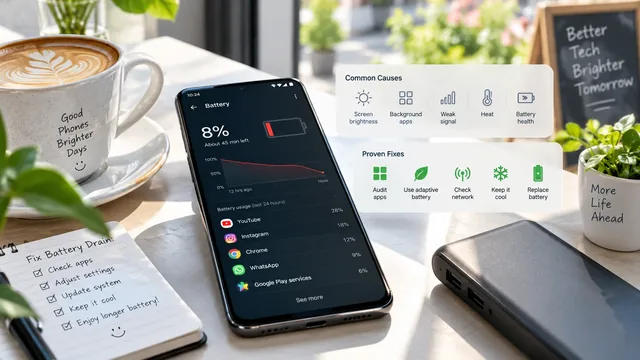
Android Battery Draining Fast? 15 Proven Fixes (2026)
Android battery draining too fast? Here are 15 proven fixes you can try today — from app audits to charging tips and when the battery itself is failing.
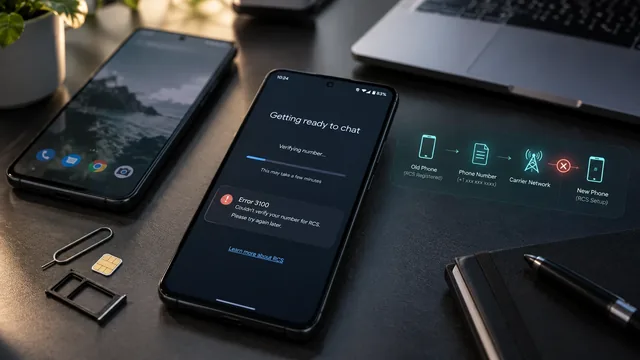
Google Messages RCS Stuck on Setting Up or Error 3100 After Switching Phones
Get your messages moving again with a clear guide to number verification, old-phone registration, dual SIM and the elusive error 3100.
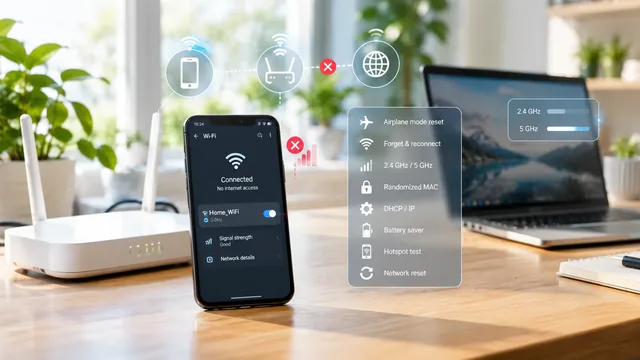
Android Wi-Fi Keeps Disconnecting? Here Are 11 Fixes
Android Wi-Fi keeps dropping? 11 fixes — airplane-mode toggle, forget-and-reconnect, IP conflicts, Wi-Fi power save and network-settings reset.