ADB Over the Internet on Android: Safe Setups With and Without Root
Remote ADB is easy to switch on and easy to get dangerously wrong. This guide works with or without root, marks what is root-only, and shows three ways to reach your phone without opening a port to the internet.
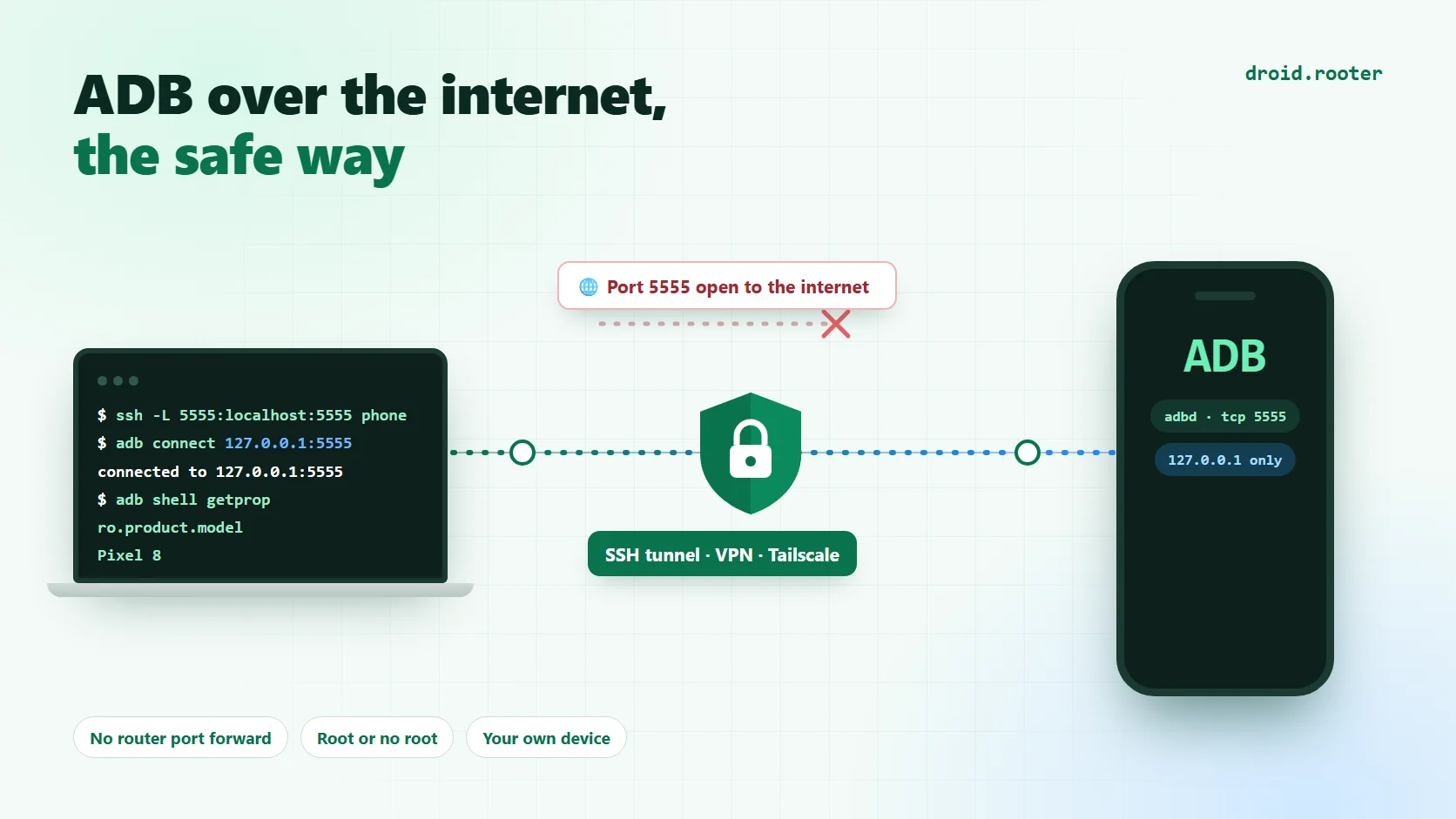
Table of Contents
- Root or no root: what changes
- What actually protects ADB, and what does not
- Why Wireless debugging is the wrong tool for unattended remote access
- Step 1: Turn on TCP ADB
- Without root
- With root (Root only)
- Step 2: Pick a private path to the phone
- Method A: Tailscale
- Method B: an SSH reverse tunnel through your own server
- Method C: WireGuard on your own server
- The setup to avoid: forwarding port 5555 on your router
- Hardening checklist
- Working over a slow link
- Troubleshooting
- Frequently asked questions
- Before you rely on it
- Sources and scope
You do not need root to reach your phone's ADB from another country. You need a way to switch on ADB over TCP, and a private path between your computer and the phone. Root changes only the first part: it lets the phone switch ADB on by itself, and keep it on after a reboot, without a cable. Everything else in this guide works the same on a stock phone.
The two ways people get this wrong are the same with or without root. They follow a tutorial that forwards port 5555 on the home router, or they trust a connection that works on Wi-Fi and silently fails on mobile data.
This guide is for the phone you own: a spare handset that runs your tests, a phone at home you want to reach while travelling, a small device farm. It does not cover reaching anyone else's device. It explains how remote ADB works, how to turn it on with and without root, and three connection methods that never put ADB on the public internet. Steps that need root are marked Root only.
The short version: turn on TCP ADB on the phone, keep it reachable only through an encrypted private path, and use that path from your computer. Tailscale is the easiest path. An SSH reverse tunnel through a small server of your own is the most universal. Plain port forwarding of 5555 is the one setup to avoid.
Root or no root: what changes
| Task | Without root | With root |
|---|---|---|
| Switch on TCP ADB | Plug the phone into a computer once and run adb tcpip 5555, or use the on-phone method below on Android 11 and newer | Run one command on the phone itself |
| Keep it on after a reboot | You repeat the step above after every restart | Set a property and a boot script once. Root only |
| Reach it from anywhere | Tailscale, an SSH reverse tunnel or WireGuard | The same |
| Limit port 5555 to the VPN on the phone itself | Not possible | A firewall rule can do it. Root only, and not reliable everywhere |
| Run commands as root remotely | No. You get the shell user | adb shell su if your root manager allows it. Root only |
The practical difference is reliability, not capability. A stock phone works fine remotely until it reboots, and then it is unreachable until someone with the phone and a computer restores it. For a phone in another city, that is the reason to root it. For a phone you can reach by hand, or a short-term test, you do not need to.
What actually protects ADB, and what does not
Most remote ADB advice says that ADB over the network has "no encryption and no authentication." That is half true, and the half that is wrong matters for how you set things up.
Classic network ADB, the adb tcpip 5555 mode, is unencrypted. Android's ADB design notes describe the legacy transport as plain packets, while the Wi-Fi mode introduced in Android 11 wraps the session in TLS.source 2 Anyone who can watch the path between you and the phone can read what you send.
Authentication is a different matter. On a normal production build, ADB still asks the phone to approve your computer's RSA key. The first time you connect, adb devices shows unauthorized and the phone shows a dialog: "Allow USB debugging?" with the key fingerprint. Android's documentation states that adb commands cannot run until you unlock the device and acknowledge that dialog.source 1 The keys you approve are stored on the phone, and ticking "Always allow from this computer" is what makes later connections silent.
Two practical consequences follow. First, an exposed port is not an open door to a stranger on a stock phone, but it is an open door to anyone who obtains a key the phone already trusts, and it is a full door on any device where authentication is off. The malware that has spread through port 5555 has mostly found those devices: TV boxes, projectors, developer builds and phones where someone set the secure flag off. Second, the very first connection from a new computer needs a hand on the screen. Plan to authorise your key while you are standing next to the phone, over a USB cable or on your home Wi-Fi, and tick the box that remembers it.
| Mode | Encryption | Port | How it authenticates |
|---|---|---|---|
adb tcpip 5555 or the service.adb.tcp.port property | None. Traffic is plain | Fixed, usually 5555 | The RSA key prompt on the phone |
| Wireless debugging, Android 11 and newer | TLS | Random, changes when you toggle it | Pairing code or QR, then a stored key |
Why Wireless debugging is the wrong tool for unattended remote access
Wireless debugging looks like the safer choice, and for a laptop on your home Wi-Fi it is. For remote access it fights you. The connection port is random and changes when you switch the feature off and on, discovery relies on mDNS, which does not cross a VPN, and newer Android releases switch it off on their own. Android 17 with ADB 37 adds "ADB Wi-Fi 2.0," which turns wireless debugging off on networks you have not marked as trusted and reconnects automatically on ones you have.source 4 That is excellent behaviour for a developer's desk and exactly wrong for a phone you need to reach from another country.
If you want the details of that feature, our guide to wireless ADB on Android 17 covers pairing, trusted networks and the paired-but-offline problem. For remote use, the better building block is the fixed TCP port, which you can switch on with or without root and then protect with something stronger than the port itself.
Step 1: Turn on TCP ADB
Pick the part that matches your phone. Both end in the same state: the phone's ADB daemon listens on port 5555, and Step 2 protects it.
Without root
On any Android phone, enable Developer options and USB debugging, connect the phone to a computer with a cable, approve the key when the phone asks, and run:
adb tcpip 5555Unplug the cable. The phone now accepts ADB over the network on port 5555 until it restarts. Some builds also reset the setting when you toggle USB debugging, so if the port stops answering, run the command again. Because the setting is lost on reboot, an unrooted phone needs a person with a cable after every restart. That is fine for a phone you control and a poor fit for one you cannot reach.
On Android 11 and newer there is a way to do the same step with no computer at all, and it is widely used by the community, though we have not tested it on every device. You turn on Wireless debugging, install Termux and its Android tools package, pair Termux to the phone itself using the pairing code, connect to the phone's own address and run adb tcpip 5555 from there. It needs the phone connected to Wi-Fi at that moment. Treat it as a fallback for the day you forgot your cable, and check a current Termux guide for the exact commands, since they change with the package and Android version.
With root (Root only)
On a rooted phone, open a terminal app such as Termux and get a root shell. The property that controls the port is read by the ADB daemon itself, and the daemon source checks service.adb.listen_addrs, then service.adb.tcp.port, then persist.adb.tcp.port.source 3
su
setprop service.adb.tcp.port 5555
stop adbd
start adbd
Restarting the daemon drops any USB debugging session that is open, so run it from the phone and not from a PC that is connected over the cable. Verify that it listens:
getprop service.adb.tcp.port
ss -ltn | grep 5555
Some Android builds do not ship ss; netstat -ltn works on others. If neither is present, the connection test from your computer in Step 2 is the real proof.
The service. property is lost when the phone reboots. A phone you cannot reach after a power cut is not a remote phone, so make the setting persistent. There are two ways, and they combine well. The first is the persistent property:
setprop persist.adb.tcp.port 5555The second is a boot script. With Magisk, a shell script saved in /data/adb/service.d/ and marked executable runs late in the boot; KernelSU and APatch use a small module with a service.sh file instead. Check your root manager's own documentation for the exact location, since it changes between tools and versions.
#!/system/bin/sh
until [ "$(getprop sys.boot_completed)" = "1" ]; do sleep 5; done
setprop service.adb.tcp.port 5555
stop adbd
start adbd
Reboot once and test. Android vendors treat these properties differently, and a few ROMs ignore them or reset them. On Android 11 and newer a SELinux rule once blocked ADB from setting the port property on some builds and was later relaxed.source 5 If it does not survive a reboot on your phone, the boot script is the fix, and if the daemon never listens at all, your ROM may block the property. In that case, one USB session with adb tcpip 5555 after each boot is the fallback, which is the no-root method above.
To turn it back off, with root:
setprop service.adb.tcp.port -1
setprop persist.adb.tcp.port ""
stop adbd
start adbd
Without root, switching off USB debugging in Developer options, or restarting the phone, does the same job.
At this point the phone is listening on every network interface it has. That is fine as long as the only things that can reach those interfaces are you and your trusted network, which is the job of the next step.
Step 2: Pick a private path to the phone
Every method below works with or without root. Each has the same goal: give your computer an encrypted, authenticated route to port 5555 on the phone, and do it without accepting an inbound connection from the open internet. That second part matters more than it looks. Most phones on mobile data sit behind carrier-grade NAT, so a router forward cannot reach them even if you wanted one.
| Method | Needs | Works behind CGNAT | Effort | Best for |
|---|---|---|---|---|
| Tailscale | Free account, app on both ends | Yes | Lowest | Most people |
| SSH reverse tunnel | A small server you control | Yes | Medium | Anyone who prefers no third-party service |
| WireGuard on your own server | A server with a public IP | Yes | Medium | A fixed, always-on setup |
| Forwarding 5555 on the router | Public IP | No on mobile data | Low | Nobody. Do not do this |
Method A: Tailscale
Tailscale builds a private network between your devices and traverses NAT for you, which is why it works from a phone on mobile data. Install it on the phone and on your computer and sign in to the same account. Each device receives a stable address starting with 100., and the phone's address is visible in the app and in the admin console.
From the computer:
adb connect 100.x.y.z:5555
adb devices
The first time, the phone asks you to approve the key, which is the reason to do this once with the phone in your hand. The Tailscale app does not need root. After that, adb shell, adb push, adb logcat and scrcpy all work as if the phone were on your desk.
Three settings turn this from convenient into dependable. First, by default Tailscale lets every device on your network reach every other one, and the policy file is where you narrow it. A rule that lets only your own account reach the tagged phone on port 5555 looks like this in the access policy:source 6
{ "action": "accept", "src": ["you@example.com"], "dst": ["tag:phone:5555"] }Second, turn off key expiry for the phone in the admin console, or it will drop off your network on schedule and you will not be able to put it back from far away. Third, give the Tailscale app unrestricted battery use in Android settings. Users report the app being stopped or disconnecting every few minutes under aggressive power management, and a drop in the middle of a transfer is the usual symptom.source 8
Two limits are worth knowing. Tailscale's built-in SSH server does not run on Android, since the platform is client-only for that feature, so use the ADB port directly or the SSH tunnel below if you need a shell without ADB.source 7 And do not use Tailscale Funnel for this. It exists to publish web services on the public internet, which is the opposite of what you are trying to do.
Method B: an SSH reverse tunnel through your own server
This method needs nothing from a third party. You rent the smallest virtual server you can find, and the phone connects out to it and holds that connection open. Your computer connects to the same server and reaches the phone through it. Because the phone dials out, it works behind CGNAT and on hotel Wi-Fi.
On the phone, in Termux, which does not need root, install the SSH client and create a key:
pkg install openssh autossh
ssh-keygen -t ed25519
On the server, create a dedicated user and add the phone's public key to its authorized_keys file, restricted so that the key can do nothing except open the one listening port on the loopback interface:
restrict,port-forwarding,permitlisten="127.0.0.1:15555" ssh-ed25519 AAAA... phoneThen, on the phone, hold the tunnel open. The options below make the connection fail loudly if the port cannot be bound and stop it from silently hanging on a dead network:
ssh -N -R 127.0.0.1:15555:127.0.0.1:5555 \
  -o ServerAliveInterval=30 -o ServerAliveCountMax=3 \
  -o ExitOnForwardFailure=yes tunnel@your-server.example
autossh can supervise that command and restart it, and the Termux:Boot add-on can start it after a reboot, with termux-wake-lock to keep the CPU awake while the tunnel is up. Set the battery option for Termux to unrestricted as well. These pieces depend on your Android version and on how aggressively your vendor kills background apps, so test with the screen off for an hour before you rely on it.
From your computer, forward a local port to the tunnel and connect through it:
ssh -N -L 5556:127.0.0.1:15555 you@your-server.example
adb connect 127.0.0.1:5556
Note the local port 5556. Your own ADB server often occupies 5555 already, and a clash there produces confusing errors. The remote forward is bound to the server's loopback address, so nothing on the internet can reach it directly, and OpenSSH's default for remote forwards already refuses to bind a public interface unless you changed GatewayPorts.
Use key-only logins on the server and keep the password for that user disabled. A reverse tunnel with a password login on an internet-facing SSH server is not much safer than the port forward it replaces.
Method C: WireGuard on your own server
WireGuard gives you the same effect as Tailscale with every moving part under your control. Run a WireGuard endpoint on a server with a public address, add the phone and your computer as peers, and set PersistentKeepalive = 25 on the phone's side so mobile networks keep the NAT mapping alive. Android's WireGuard app, which does not need root, roams between Wi-Fi and LTE and can run as an always-on VPN. From your computer you then connect to the phone's WireGuard address on port 5555, exactly as with Tailscale. This is the right choice when you want a fixed, permanent setup and do not mind maintaining the server.
One note on a popular alternative: Cloudflare Tunnel is documented for SSH, but we have not verified a clean setup for raw ADB traffic, so we do not recommend it here.
The setup to avoid: forwarding port 5555 on your router
It is tempting to forward external port 5555, or a "clever" custom port, to the phone and call it done. Do not. It sends unencrypted ADB across the public internet, it depends entirely on one key prompt, and it announces itself to the scanners that look for exactly this.
That is not theory. In 2020 researchers at Keysight analysing the Trinity botnet reported roughly 40,000 exposed ADB devices visible on Shodan, about a quarter of them phones, with the malware connecting to them using adb connect itself.source 9 A competing botnet, Fbot, removed Trinity from infected devices, and Trinity returned within hours. In February 2021 the Matryosh botnet, built on Mirai code, spread over the same port.source 10 Changing the external port number changes nothing, because scanners probe every port.
Some guides compromise by forwarding the SSH port of a Termux server instead. That is better than forwarding ADB, but it still publishes an SSH service on your home IP, and a Termux login with a password is a poor thing to leave on the internet. A reverse tunnel or an overlay network gives you the same result without any inbound port at all.
Hardening checklist
Authorise only the computers you actually use, and revoke old ones. In Developer options, "Revoke USB debugging authorizations" clears every stored key, which is a good habit before you hand the phone to someone else. Keep ADB debugging switched off on any phone that does not need it, and treat the port you opened in Step 1 as part of the same decision. Do not tick "Always allow" on a shared or public computer.
An authorised ADB session sees what the shell user sees, which is already a lot: installed apps, files you can read, the screen and input. Root only: on a rooted phone, adb shell su can reach much more if your root manager grants it to the shell, so set the manager to prompt for the shell instead of allowing it silently.
Root only: some people add a firewall rule on the phone so port 5555 only answers on the VPN interface. The idea is sound, but we could not confirm it is reliable on Android. The system's network daemon can reorder or flush rules when the network changes, and the stock Tailscale app does not create a tailscale0 interface for you to match on. If you try it, re-apply the rule from your boot script and test from a device that is not on the VPN.
Working over a slow link
A phone behind a tunnel feels slower than one on your desk, and the fix is usually to ask for less. For screen mirroring with scrcpy, lower the resolution and bitrate, for example scrcpy -s 100.x.y.z:5555 -m 1280 -b 4M; the flag names vary slightly between versions, so check scrcpy --help. scrcpy can also enable TCP mode for you with --tcpip, and its documentation recommends disconnecting when you are done.source 11 A direct Tailscale path is faster than one relayed through the vendor's servers, and the connection status in the app tells you which one you have.
When more than one device is connected, tell ADB which one you mean with adb -s 100.x.y.z:5555 ..., or use -d for the USB device and -e for an emulator. File transfers and adb logcat are the tasks that tolerate latency best.
Troubleshooting
| What you see | What it usually means | What to try |
|---|---|---|
unauthorized | The phone has not approved this computer's key | Unlock the phone and accept the dialog, or revoke authorisations and try again |
offline | A stale connection | adb disconnect, adb kill-server, then connect again |
failed to connect or connection refused | Nothing listening, wrong address, the VPN is down, or the phone is dozing | Check the property and the listener on the phone, then the VPN status |
more than one device/emulator | Several targets | Use -s, -d or -e, or set ANDROID_SERIAL |
| Works for ten minutes, then drops | Android power management | Unrestricted battery for Tailscale or Termux, a wake lock, and keepalive options |
| Worked yesterday, not after a reboot | The port setting was lost | Without root, run adb tcpip 5555 again over USB. With root, set persist.adb.tcp.port or use the boot script |
With root, you can check what the phone is actually using by running getprop service.adb.tcp.port and getprop persist.adb.tcp.port in a root shell. Without root, adb connect from the computer is the test. If the phone is also using Wireless debugging, remember that its random TLS port is stored separately, so a working wireless connection says nothing about the fixed port.
Frequently asked questions
Does this need root? No. Without root you enable TCP ADB over USB once and use Tailscale, a reverse tunnel or WireGuard exactly as described. The cost is that the setting is lost at every reboot, so someone has to reconnect a cable. Root removes that step and adds the firewall and su options, and nothing else in this guide depends on it.
Does this work over mobile data? Yes, because Tailscale, WireGuard and a reverse tunnel all connect outward from the phone. A router port forward is the method that fails there.
Is it safe to leave on all the time? It is as safe as the path that protects it. Behind an overlay network with an access policy, the exposure is small. Leave it on only if you will actually use it, and switch it off when you will not.
Can someone abuse this without the key prompt? On a normal build, a new computer has to be approved on the phone. On any build where debugging authentication is disabled, they can connect without it, which is why you should never expose that port to the internet regardless of the build.
Why not just use a remote desktop app? For screen use, that is fine, and a screen-share app needs no root at all. ADB is the right tool when you need shell commands, installs, file transfers or logs from a distance.
Before you rely on it
Test everything with the phone on mobile data and the computer on a different network. Reboot the phone and check what comes back by itself: on a rooted phone it should, and on an unrooted one you should know exactly what you need to redo. Try it with the screen off for a while. If you cannot reach the phone after any of those tests, you have found the problem while it is still cheap to fix.
If you are still choosing a phone for projects like this, and want one you can root, our rootable phone catalogue shows which models unlock cleanly, and the Magisk modules guide covers the module side of the root-only boot script. For a Linux shell that does not depend on root, see Android Linux Terminal vs Termux.
Sources and scope
This guide was researched in October 2026 from Android's own documentation and source, and from vendor and security-research publications. We did not test every Android version and ROM. The property behaviour, boot scripts, the on-phone enabling trick, the firewall approach and Termux battery behaviour vary between devices, so check each one on your own phone before you depend on it.
- Source 1: Android Developers, Android Debug Bridge (adb) Open source
- Source 2: Android Open Source Project, ADB Wi-Fi design notes: legacy TCP is unencrypted, Wi-Fi mode uses TLS Open source
- Source 3: Android Open Source Project, adbd main.cpp, port selection from properties Open source
- Source 4: Android Developers Blog, Wireless debugging and ADB Wi-Fi 2.0 Open source
- Source 5: OmniROM, SELinux policy change for adbd properties Open source
- Source 6: Tailscale, Access control lists Open source
- Source 7: Tailscale, Tailscale SSH platform support Open source
- Source 8: Tailscale community forum, Android disconnects and battery use Open source
- Source 9: Keysight, TrinityP2P malware over ADB Open source
- Source 10: The Hacker News, Matryosh DDoS botnet, February 2021 Open source
- Source 11: scrcpy documentation, Connection Open source
More Android Guides
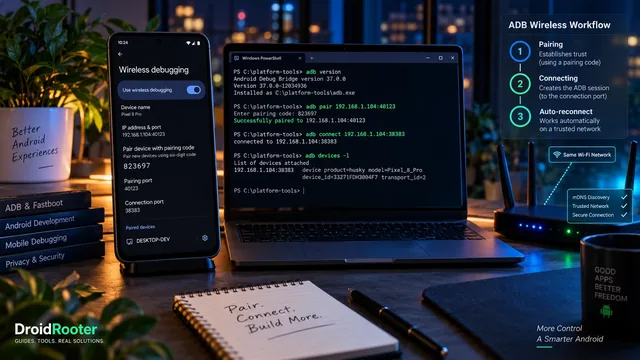
Wireless ADB on Android 17: Pairing, Auto-Reconnect and the Fixes That Still Apply
Pairing and connecting are different steps. This guide explains ADB Wi-Fi 2.0, the two ports, current Platform Tools and a safer troubleshooting sequence.
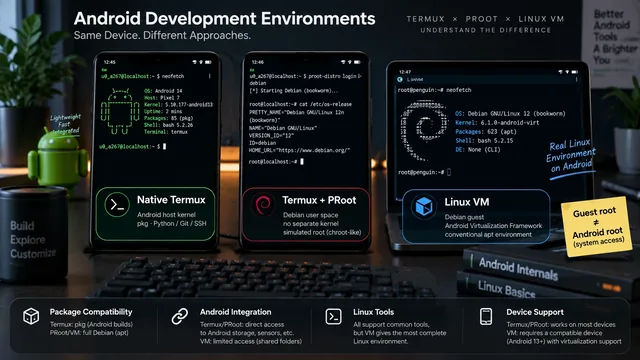
Android's Linux Terminal vs Termux: Which One Do You Actually Need?
Three environments can look like the same terminal while running very differently. Choose based on the program you need, its dependencies and your phone.
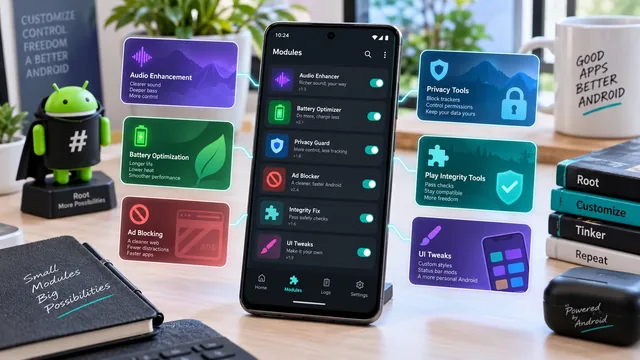
Best Magisk Modules in 2026: Verified Sources, and What's Been Discontinued
Rewritten from scratch and verified project by project. Six widely recommended modules no longer exist, several popular picks are not modules at all, and every link here points at the maintainer's own repository.