Android Auto Keeps Disconnecting After an Update: Samsung and Pixel Fixes
Map gone, music stopped, phone still charging? Separate cable, wireless, app and update problems with a simple test sequence.
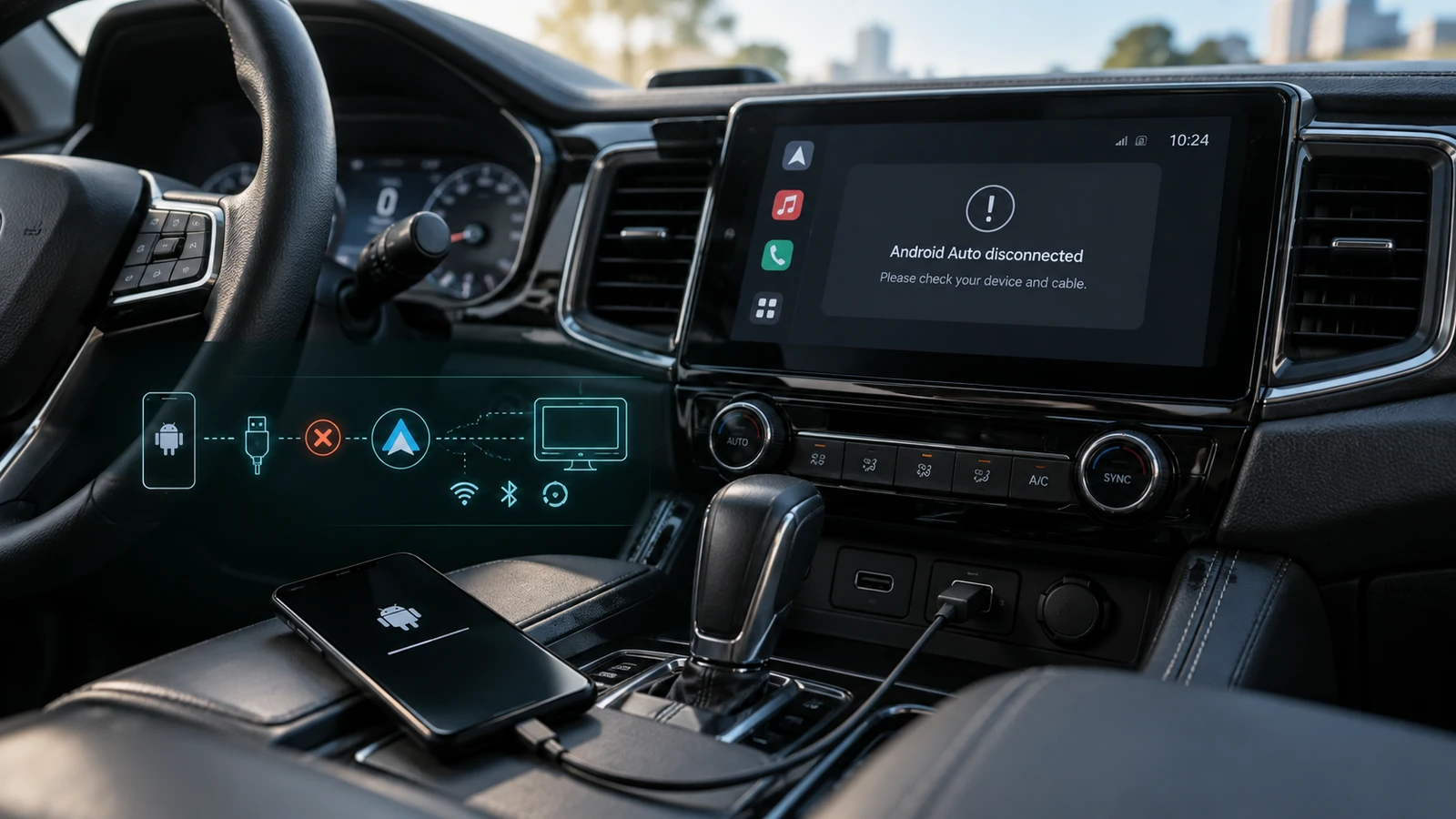
Table of Contents
- Find your symptom first
- 1. Confirm what the car supports
- 2. Fix the wired path
- 3. Rebuild the wireless pairing
- 4. Work out whether the update matters
- 5. Separate disconnection from app trouble
- A simple test log that support can actually use
- Frequently asked questions
- Why does my phone charge but not launch Android Auto?
- Does wireless Android Auto work through Bluetooth alone?
- Should I reset all network settings?
- When should I stop troubleshooting?
- Sources and review notes
The map disappears. The music stops. Ten seconds later, everything reconnects as if nothing happened. Before buying another adapter or blaming the latest update, find out which connection is actually dropping. Android Auto has several moving parts, and you can test them one at a time.
Quick answer: If wired Android Auto disconnects, test a short data-capable cable in the correct vehicle USB port. If wireless disconnects, compare it with a direct wired connection where supported. Restart the phone and infotainment system, then check pairing and updates. Change one thing per test so you know what helped.
Find your symptom first
| Symptom | Best first test | What the result suggests |
|---|---|---|
| Phone charges but Android Auto never starts | Correct data USB port and another data cable | Charging alone does not establish a data connection |
| Wired connection drops when the lead moves | Another cable, connected directly | Cable or port deserves attention |
| Wireless fails but wired works | Fresh wireless pairing without an adapter | Focus on wireless setup, receiver or adapter |
| Both modes fail in one car | Another compatible phone in that car | Receiver or vehicle settings may be involved |
| Same phone fails in two compatible cars | Phone settings and software versions | Stronger evidence of a phone-side problem |
| Only music stops; map stays connected | Test another audio app | An app problem may resemble a connection failure |
These are diagnostic clues, not verdicts. One successful test with a different phone does not prove your handset is defective; compatibility can differ between models.
1. Confirm what the car supports
Bluetooth calls, a USB socket and a large dashboard screen do not automatically mean Android Auto is supported. Wired and wireless support are also separate features. Check the exact model year, trim and installed receiver using the vehicle manual or manufacturer support.
Google's Android Auto requirements specify a compatible phone and receiver, and 5 GHz Wi-Fi for wireless projection. For imported phones used in Europe, check the manufacturer's regional compatibility information too. A US model name and a European model name can look alike while hiding different hardware or firmware.
If you use a wireless dongle, you have added another device to the chain. Temporarily remove it and test the car's native wired connection, if supported. This is one of the most useful comparisons you can make without spending money.
2. Fix the wired path
Google recommends a USB cable shorter than 1 meter, without hubs or extensions. Use a known data-capable cable, preferably one you can borrow for the test. Expensive packaging is not a diagnostic tool.
Connect to the USB socket designated for phone projection. A nearby charging-only socket may happily fill the battery while doing nothing for Android Auto. Remove unnecessary adapters, check that the plug seats fully, and take off a case if it obstructs the connector.
If the connection drops with ordinary cable movement, inspect for visible damage. Do not scrape inside the phone port with metal tools or force a loose connector. A damaged port needs inspection, not increasingly creative cable angles.
Success check: Leave Maps and an audio app running while parked long enough to exceed the interval at which the fault normally appears. If the new cable is stable, reconnect the old one once to confirm the comparison. Stop if either cable or port appears damaged.
3. Rebuild the wireless pairing
Google's wireless setup instructions start with Bluetooth pairing and recommend keeping Wi-Fi, Bluetooth and Location Services enabled during setup. Being paired for calls alone is not the same as completing Android Auto setup.
Use the car's phone-management menu to remove the problem pairing, then remove that vehicle from the phone's Bluetooth settings. Re-pair while parked and accept the relevant prompts on both screens. Menu names vary; follow the receiver's manual rather than guessing at a factory-reset option.
If Android Auto still remembers an unusable setup, search Android settings for Android Auto → Previously connected cars. Google's troubleshooting page documents Forget all cars; understand that it removes every saved car before choosing it.
For a clean comparison, temporarily keep a second paired phone out of the connection attempt. If the car automatically selects a passenger's handset, yours may look disconnected even though the receiver is behaving as configured.
4. Work out whether the update matters
“It started after an update” is useful evidence. It is not yet proof of which component caused it. Record the Android version, Samsung One UI version if relevant, Android Auto version, Google Play services version, and the date the trouble began.
Check for normal updates through your phone's settings and the Play Store, and for receiver firmware through the manufacturer's support page. Google's car and receiver checks specifically include infotainment restarts and aftermarket firmware updates. Do not install a firmware file intended for another region or receiver model.
For Samsung devices, use the Samsung UK Android Auto guide alongside the car manual. It covers the phone, cable and vehicle as a connected system, which is more useful than assuming every Galaxy has the same fault.
Avoid sideloading random older Android Auto or Play services packages. A workaround posted for a different software version can create a second problem. If a vendor acknowledges your exact combination, follow its documented fix and keep a note of the version installed.
5. Separate disconnection from app trouble
When it happens again, observe what remains on the car display. Does Android Auto close completely? Does the phone reboot? Does only Spotify pause? Does the map remain visible but stop loading new roads?
Those observations point to different next steps. An audio-only fault deserves an app update and another audio-app test. A map that cannot load while the interface stays connected deserves a mobile-data check. A reboot deserves phone troubleshooting beyond Android Auto.
If several apps crash outside the car too, start with our Android apps crashing guide. If the phone becomes unusually hot during navigation, take it out of direct sunlight and let it cool before comparing connections again. Our battery troubleshooting guide covers broader phone behavior.
Do not disable battery restrictions for every app on the handset. First establish whether an app is being stopped or the entire connection is disappearing.
A simple test log that support can actually use
Try the following while parked, using only combinations supported by your car:
| Test | Result to write down |
|---|---|
| Your phone, direct cable, no dongle | Connected for how long; what disappeared |
| Your phone, a second data cable | Same fault or stable |
| Your phone, native wireless | Works, fails to pair, or drops later |
| Another compatible phone in your car | Same behavior or stable |
| Your phone in another compatible car, if available | Same behavior or stable |
Add the car's year, trim, receiver model and firmware version. “Pixel disconnects” gives support very little. “Wired drops after three minutes with two cables, but a second phone stays connected in the same car” gives them a useful starting point.
Frequently asked questions
Why does my phone charge but not launch Android Auto?
Charging needs power; projection also needs a working data connection and a compatible receiver. Check the designated USB port, a data cable, and whether Android Auto is enabled in the vehicle menu.
Does wireless Android Auto work through Bluetooth alone?
No. Bluetooth is part of pairing, while wireless projection also needs compatible Wi-Fi hardware and receiver support. A car that supports Bluetooth audio may still require a cable for Android Auto.
Should I reset all network settings?
Try the specific car pairing first. A broader network reset can remove saved connections unrelated to this problem. If support recommends it, read the phone's confirmation screen and record what will be removed before proceeding.
When should I stop troubleshooting?
Stop when you have isolated a damaged connector, a receiver compatibility limit, or a repeatable software problem after the relevant checks. Contact the vehicle or receiver maker for car-side issues and the phone vendor for phone-side failures. Droid Rooter can help interpret Android diagnostics, but an incompatible head unit cannot acquire wireless support through a phone setting.
Sources and review notes
Technical guidance reviewed September 12, 2026. The comparison tests are an editorial diagnostic sequence, not a claim that a particular current update is defective or that every phone/car combination was tested.
More Android Guides
Recover Android Data With a Broken Screen and No USB Debugging
A broken screen does not always mean lost files. Find the recovery route your phone actually supports, even when USB debugging was never enabled.
Android eSIM Transfer Failed: Pixel, Samsung and Carrier Troubleshooting
Your apps moved, but your phone number did not. Work out whether setup, activation or number porting needs attention before deleting a working eSIM.
Google Messages RCS Stuck on Setting Up or Error 3100 After Switching Phones
Get your messages moving again with a clear guide to number verification, old-phone registration, dual SIM and the elusive error 3100.