Recover Android Data With a Broken Screen and No USB Debugging
A broken screen does not always mean lost files. Find the recovery route your phone actually supports, even when USB debugging was never enabled.
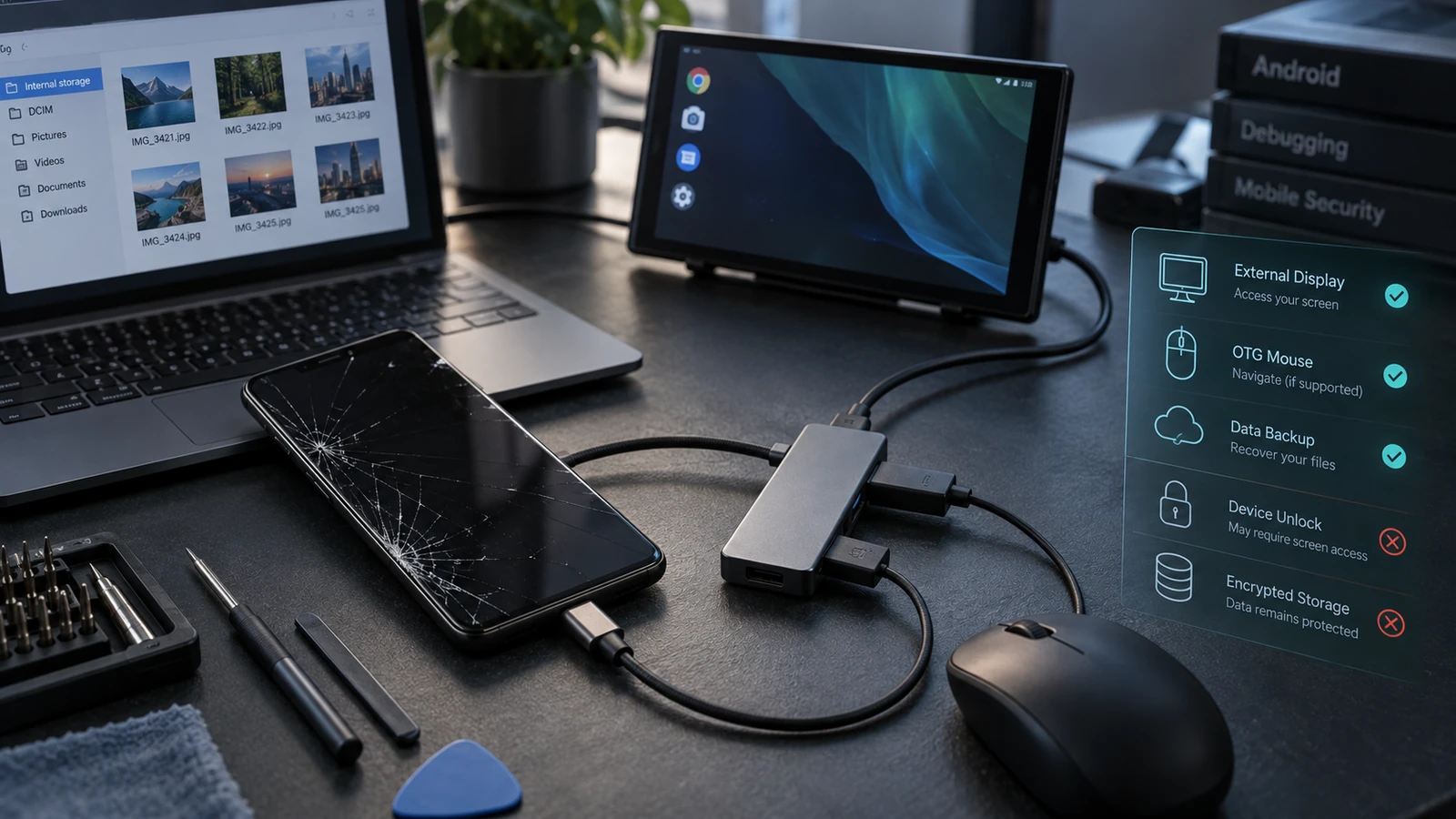
Table of Contents
- Pick the row that describes your phone
- 1. Check what is already saved elsewhere
- 2. When you can see the screen but cannot touch it
- 3. When the screen is completely black
- 4. Copy files without USB debugging
- 5. What ADB can and cannot do
- 6. Why unlocking and the original hardware matter
- Frequently asked questions
- Can I recover everything without knowing the PIN?
- Will a USB-C to HDMI cable work on any Android phone?
- Can remote support fix a physically broken screen?
- When should I ask for help?
- Sources and review notes
A broken screen can make a perfectly alive phone feel like a sealed box. The good news: USB debugging is not required for every way of getting your files back. The catch: you usually still need a way to unlock the phone and approve access.
Quick answer: Check existing cloud backups first. If the display works but touch does not, a USB OTG mouse may let you unlock and back up. If the display is black, external video may help on supported models, but on-phone prompts can block it. Otherwise, a temporary screen repair may be the most realistic route to your files.
Pick the row that describes your phone
| Phone condition | Best starting point | Main limitation |
|---|---|---|
| Picture visible, touch broken | Compatible USB OTG mouse | You need the unlock credential |
| Black screen, phone rings or vibrates | Check model-specific external display support | You may need to approve a prompt on the phone |
| Phone runs, debugging was already enabled | Previously authorized computer | A new computer still needs authorization |
| No signs of power | Hardware diagnosis | Desktop software cannot make a dead board communicate |
| Important files already synced | Check the relevant cloud account | Only previously backed-up items will be there |
Before buying anything, identify the exact model. “Samsung Galaxy” or “Pixel” is not enough to establish HDMI support. Find the model on the box, purchase record or your account's device list.
1. Check what is already saved elsewhere
Use a trusted computer or another device to check your existing Google Photos, Google Drive and contacts accounts. Also check any manufacturer or app-specific backup you deliberately enabled. Google's Android transfer guide distinguishes moving files and accounts from individual app data; one successful photo backup does not establish that every app is recoverable.
Look at the newest items, not just whether the account contains anything. Open several recent photos or documents and confirm that they are the versions you need. A folder containing last year's pictures is reassuring but does not rescue yesterday's work.
Make a short priority list: recent photos, voice recordings, Downloads, work documents, and app data you cannot recreate. This helps if the damaged phone gives you only a short window of usable access.
Check backups before ordering adapters. You may discover that the irreplaceable files are already safe, which changes how much urgency and expense the remaining recovery deserves.
2. When you can see the screen but cannot touch it
Samsung documents using a USB mouse through an OTG adapter on compatible Galaxy phones. The mouse replaces touch input; it does not bypass your lock.
- Connect a compatible USB OTG adapter and wired mouse.
- Check whether a pointer appears on the visible phone screen.
- Use the pointer to enter your own unlock credential; a compatible keyboard may help with a password or PIN.
- Open the files or backup app you need and confirm that navigation works.
- Copy a small, important item first and verify it on the destination.
If you have only one USB port, plan the transfer before unplugging the mouse. You may need a compatible hub with a USB storage drive, cloud upload over trusted Wi-Fi, or another supported transfer method. An ordinary USB hub cannot turn one phone into a device simultaneously connected to two separate computer hosts.
Do not treat an unfamiliar blank desktop folder as proof that the files are gone. The phone may simply be waiting for approval or still be in charging mode.
3. When the screen is completely black
First check whether the phone still rings, vibrates or otherwise responds normally. Those clues can distinguish a display problem from a device that is not booting, although they are not a full hardware diagnosis.
External display support is the next question. Samsung's recovery instructions describe connecting supported devices to a monitor, but not every Galaxy or foldable has the same capabilities. Confirm the exact model before buying a dock. A USB-C connector by itself says nothing about video output.
For Pixel, Google's display guide documents wired projection on Pixel 8 and later and includes an approval dialog on the phone. That last detail matters: a compatible cable does not guarantee you can get past a prompt on a completely unusable screen. Older Pixels are not covered by that wired-display method.
If your model supports the method, use the appropriate display adapter, a monitor on the correct input, and compatible input devices. If you cannot approve setup or unlock, stop repeating the same cable experiment. A temporary working screen may be required.
4. Copy files without USB debugging
Normal USB file transfer and USB debugging are different features. Google's file-transfer instructions require you to unlock the phone, connect a data cable, and select File transfer from the USB notification. They do not require Developer options.
On a Windows PC, once the phone grants access, copy the folders you need to a new recovery folder. Start with DCIM, Pictures, Download and any known recording or document folders. App-specific locations vary, so inspect what is present rather than assuming a universal folder name.
Copy, do not move. Open several recovered files on the computer, compare the file counts where useful, and make a second copy of irreplaceable items before treating the job as finished. A progress bar reaching 100% is less convincing than a photo or recording you can actually open.
USB file browsing does not expose every app's private database. If the files you need live inside an app, use its supported backup or export method once you can control the phone. For a Galaxy, Smart Switch may also help with supported data types after the required permissions are approved.
5. What ADB can and cannot do
Android's ADB documentation requires USB debugging to be enabled and the computer's authorization accepted on the device. Installing drivers or typing commands on a new laptop does not silently satisfy those conditions.
If debugging was enabled before the accident and this computer was already authorized, ADB may still be useful while Android is running and the relevant storage is accessible. If the connection says unauthorized, the phone needs approval. If debugging was never enabled, this is not a practical shortcut around the broken screen.
Our fastboot connection guide addresses a different mode. A phone appearing in fastboot does not mean its photos are available there. Avoid following flashing instructions simply because they are the first steps that make the computer notice the handset.
6. Why unlocking and the original hardware matter
Modern Android protects ordinary user files with encryption. The Android Open Source Project's explanation describes credential-encrypted storage that becomes available after the user unlocks the device. A chip full of stored bytes is not automatically a readable photo library.
That is why removing a lock, unlocking a bootloader, replacing a motherboard or flashing firmware is not a general data-recovery recipe. Those operations can erase data or leave the original encrypted files inaccessible. Do not choose them just to “get into” the phone.
If a shop proposes repair, explain that your priority is preserving the original data. Ask whether it can first assess a display replacement or temporary test screen without resetting the device. Ask before agreeing to a board replacement: a working replacement board is not the same outcome as recovering files from the original one.
For a phone that is actually stuck booting rather than just displaying a black screen, use our separate bricked-phone data recovery guide.
Frequently asked questions
Can I recover everything without knowing the PIN?
Do not expect a USB adapter or ordinary recovery program to defeat the screen lock and encryption. Existing cloud backups may still be accessible through your own account. For local files, restoring a way to enter the legitimate credential is usually central to recovery.
Will a USB-C to HDMI cable work on any Android phone?
No. The phone must support video output, the adapter must be compatible, and setup may require on-device approval. Check the manufacturer's instructions for the exact model before purchasing equipment.
Can remote support fix a physically broken screen?
Remote help can identify available software and backup routes. It cannot replace a display, repair a damaged USB connector, or make a nonfunctional motherboard power up. If hardware is the blocker, a local repair assessment is the next step.
When should I ask for help?
When you cannot establish a safe input method, the model lacks usable video output, or the phone no longer boots, stop trial-and-error changes. Droid Rooter's data recovery page explains the service; send the exact model, power symptoms and backup status when asking whether remote assistance is appropriate.
Sources and review notes
Technical guidance reviewed September 12, 2026. This guide covers recovering your own accessible data and restoring input, not bypassing another person's lock. Hardware support and approval prompts vary by model and software version.
More Android Guides
Android Auto Keeps Disconnecting After an Update: Samsung and Pixel Fixes
Map gone, music stopped, phone still charging? Separate cable, wireless, app and update problems with a simple test sequence.
Android eSIM Transfer Failed: Pixel, Samsung and Carrier Troubleshooting
Your apps moved, but your phone number did not. Work out whether setup, activation or number porting needs attention before deleting a working eSIM.
Google Messages RCS Stuck on Setting Up or Error 3100 After Switching Phones
Get your messages moving again with a clear guide to number verification, old-phone registration, dual SIM and the elusive error 3100.