Bootloop After a Custom ROM Flash: What Usually Needs Checking
A ROM that will not boot is usually a mismatch between the ROM and something underneath it. The decision tree finds which layer disagrees.
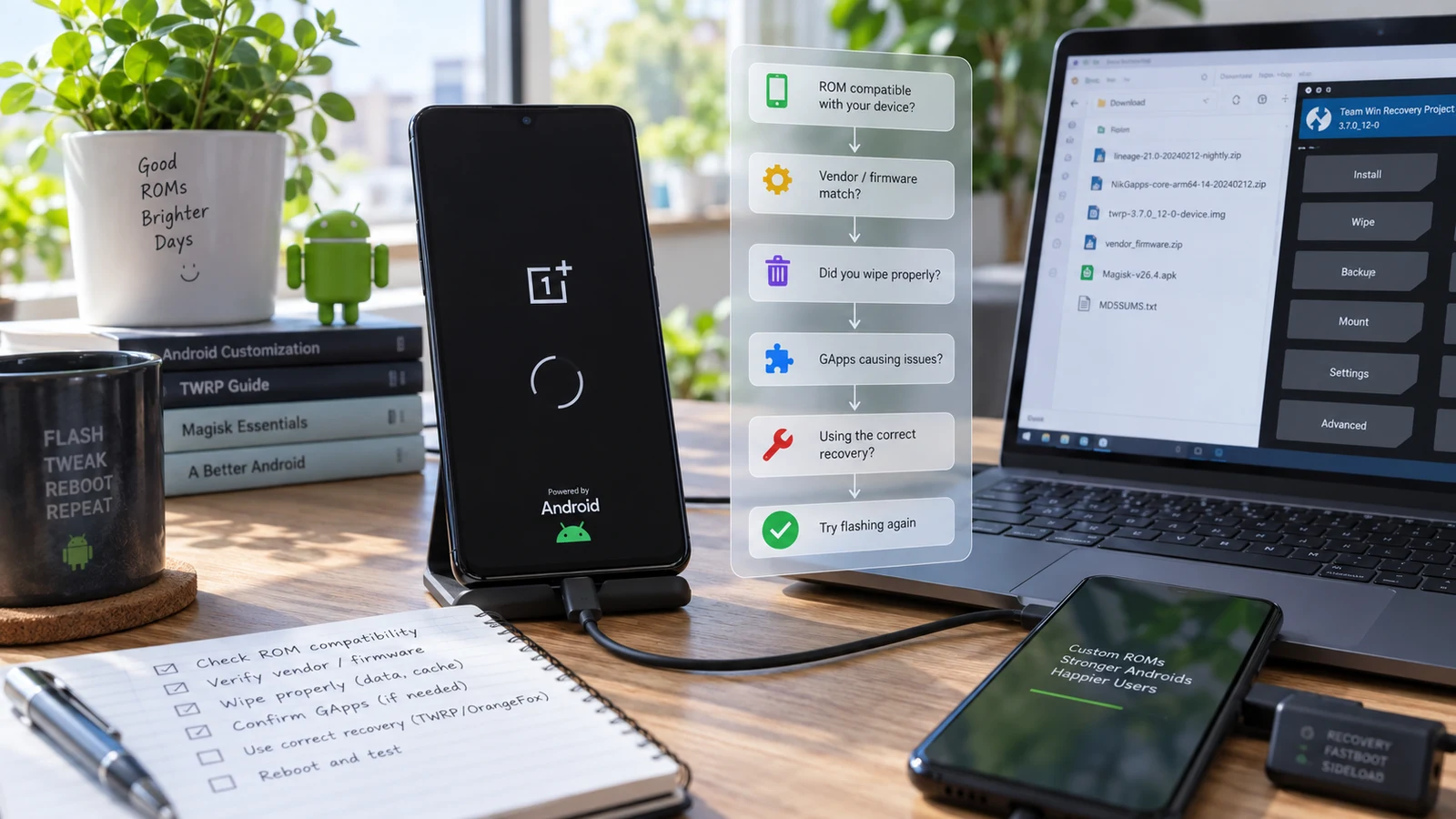
Table of Contents
A ROM that will not boot is normally a mismatch between the ROM and one of the layers underneath it: the firmware base, the vendor partition, the recovery, or the slot it landed on. The decision tree below finds which layer disagrees. Reflashing the same ROM without changing anything reproduces the same result.
Give it time first
First boots after a ROM installation take longer than normal boots, sometimes considerably. The system is building caches and optimizing applications, and on a device with a lot of storage in use that is not quick.
Before you conclude anything, let it sit on a charger through a genuinely long first attempt. Watch whether the animation is running or frozen, since a running animation means the system is doing something and a frozen one means it stopped.
If it restarts and begins again, that is a loop and you can proceed. If it has been sitting on a live animation, wait longer.
The decision tree
Start at the top and follow the branch that matches.
Does the device reach recovery?
- No, and it does not reach fastboot either → You are outside ROM troubleshooting. Go to soft brick vs hard brick and run the detection test.
- No, but fastboot works → Recovery may have been overwritten or is incompatible. Reflashing a correct recovery for your device and current firmware is the next step.
- Yes → Continue.
Did the ROM ever boot successfully, even once?
- Yes, then it looped later → Look at what changed after the successful boot. A module, an add-on package, a settings change, or an update. This is not a flash problem.
- No, it never booted → Continue.
Was this a dirty flash, meaning you flashed over an existing installation without wiping?
- Yes → A dirty flash across different ROMs, across major Android versions, or onto a different base is a leading candidate. Continue to the clean flash section.
- No, it was clean → Continue.
Does the ROM's own documentation specify a required firmware or vendor version?
- Yes, and you did not flash it, or flashed a different version → This is the most likely answer. See the firmware base section.
- Yes, and you matched it → Continue.
- The documentation does not say → Treat the firmware base as unverified and check it anyway.
Did you flash add-on packages such as GApps in the same session?
- Yes → Try the ROM alone, without add-ons, to isolate. See the add-ons section.
- No → Continue.
Is your device an A/B device, and do you know which slot the ROM went to?
- Unsure → Check the active slot. A ROM installed to one slot with the device booting the other produces confusing results.
- Confirmed correct → Continue.
Is the build actually for your device variant?
- Check the codename, not the marketing name. Then check the variant. This is the check people are most confident about and most often wrong about.
The firmware base
Modern devices are not just a system image. There is a vendor partition, and often several other components, that carry the manufacturer's hardware-specific pieces. A custom ROM is built against a particular version of those.
Flash a ROM built for a newer firmware base onto an older one, or the reverse, and the result ranges from a device that boots with broken hardware features to a device that does not boot at all.
What to do:
- Find the ROM's own documentation for your device. The maintainer's page, not a third-party summary.
- Read what firmware or vendor version it requires.
- Compare that to what your device actually has, which is not always what you assume from the Android version.
- If they differ, updating the firmware base to what the ROM expects is the fix, using the manufacturer's own firmware.
This is the check that resolves the largest share of never-booted ROM installations, and it is the one most commonly skipped because the ROM installed without complaint. Installing without complaint and booting are different things.
Clean flash versus dirty flash
A dirty flash keeps your data and apps. It works when you are updating within the same ROM, on the same base, in the same Android version. It becomes unreliable when any of those change.
A clean flash removes the old installation and gives the ROM a consistent starting point. It costs you the data on the device.
Destructive action warning: a clean flash means wiping the data partition. Formatting data additionally removes the encryption state. Both are irreversible, and on a device using file-based encryption the data is not recoverable afterwards by any tool.
The honest guidance: if you dirty-flashed across a version boundary or across ROMs and it will not boot, a clean flash is the standard answer and it costs you your data. If your data matters and is not backed up, stop and read what your options are before wiping, because the wipe is the point of no return, not the loop.
Encryption and format data
Custom recoveries have to decrypt the data partition to read it. When the recovery's decryption support does not match the device's encryption implementation, the recovery cannot mount data and reports it as corrupt or unreadable.
That message frequently prompts people to format data, which does resolve the mounting problem by destroying what was there.
Before you do that, consider that the underlying issue may be a recovery version mismatch rather than damaged data. A recovery build that properly supports your device and firmware may mount the same partition without complaint. Formatting is irreversible and cannot be undone once it has run.
Add-on packages
Add-on packages such as Google apps come in architecture variants, Android version variants, and size variants. A mismatch in any of those can prevent a boot.
They also have to be flashed at the right point in the process, which is normally in the same session as the ROM and before the first boot. Adding them after the first boot on many ROMs does not work and can break a working installation.
Isolate by flashing the ROM alone. If it boots, the ROM and the base are fine and the add-on is the variable. If it still does not boot, the add-on was never the problem and you have narrowed things usefully.
Some ROMs bundle add-ons in the build itself. Flashing a separate package on top of one of those creates a conflict.
Recovery version
The recovery has to support your device, your firmware base, and the partition layout your device uses. Modern layouts with dynamic partitions and A/B slots changed what a recovery needs to handle, and an older recovery build can fail to install a ROM correctly while appearing to succeed.
If the installation reported errors, or reported success but the device never booted, the recovery version is worth checking against the project's own device page. Our TWRP installation guide covers where modern layouts diverge from older instructions.
Unsupported and unofficial builds
Community ROMs vary in maturity. An official build for a well-maintained device is a different proposition from an unofficial port with one maintainer and a handful of testers.
Worth checking before you spend more time debugging:
- Is this an official build for your device, or a port?
- When was it last updated, and is the maintainer still active?
- Are other users on your exact variant reporting successful boots on this build?
- Are there known issues for your variant listed?
Sometimes the answer is that the build does not work on your variant yet, and no amount of correct procedure changes that. Our custom ROM roundup covers which projects have the strongest device support.
Getting back to stock
If you want to stop and return to the manufacturer's software, that path exists and it is normally the most reliable way to get a working phone back.
It requires the correct stock firmware for your exact model and region, from the manufacturer's own distribution, and the manufacturer's own procedure. Assume this is destructive to user data unless the manufacturer's documentation states otherwise for the specific mode you are using.
Going back to stock does not undo an unlocked bootloader by itself, and re-locking a bootloader with non-stock software installed can leave a device that will not boot and cannot be flashed. Do not re-lock until the device is running unmodified stock firmware and booting cleanly.
Frequently asked questions
How long is too long for a first boot? Longer than you think, and the useful signal is whether the animation is still running rather than the clock. A frozen frame is a stopped boot. A looping animation that restarts from the beginning repeatedly is a loop.
Can I flash a different ROM to fix it? You can, and if the underlying issue is the firmware base or the recovery, the next ROM hits the same wall. Identify the mismatched layer first, or you are sampling ROMs rather than diagnosing.
Will a clean flash definitely fix it? No. It resolves conflicts from leftover data. It does not resolve a wrong firmware base, an incompatible recovery, an unsupported variant, or a broken build. It is irreversible, so it is worth exhausting the non-destructive checks first.
My recovery says data is corrupt. Is my data gone? Not necessarily. A recovery that cannot decrypt the partition reports something similar to a recovery reading damaged data. A recovery build that properly supports your device may read it fine. Do not format to clear the message.
Do I need to relock the bootloader afterwards? No, and doing it with custom software installed can produce a device that will neither boot nor accept a flash. If you want it locked, return to unmodified stock first and confirm the device boots.
Can this be fixed remotely? Where the device reaches recovery or fastboot and you have a computer, generally yes, since the operations run from the host. Here is what a session involves.
Related reading: Fix a bootloop without losing data · What each boot-screen symptom means · Android keeps booting into recovery · Soft brick vs hard brick · Best custom ROMs
Sources: Android Open Source Project partition and dynamic partition documentation.
Last verified: 23 August 2026. Firmware base requirements, recovery compatibility and installation procedures are specific to each device and each ROM build. Follow the maintainer's own documentation for your exact device codename.
More Android Guides
Soft Brick vs Hard Brick on Android: How to Tell
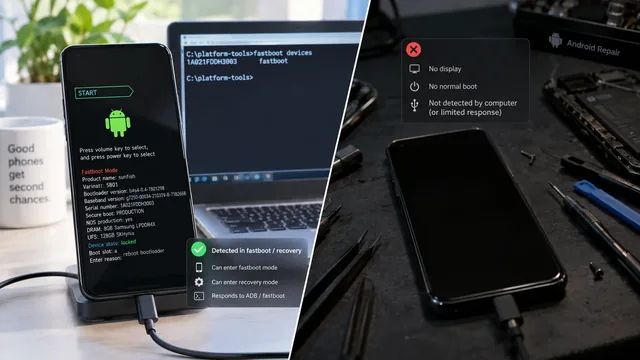
The word hard brick gets applied to at least four different states with very different outcomes. Two commands tell you which one you actually have.
Fix an Android Bootloop Without Losing Your Data
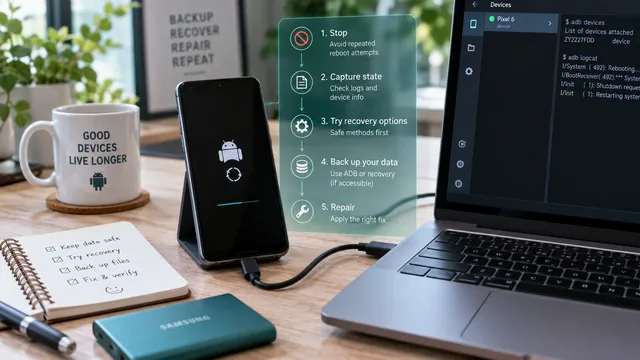
A bootloop does not erase anything on its own. Every real data loss in a bootloop comes from the repair step. Here is the order that keeps your files intact.
Magisk Flash Failed? Diagnose the Boot Image Before You Wipe
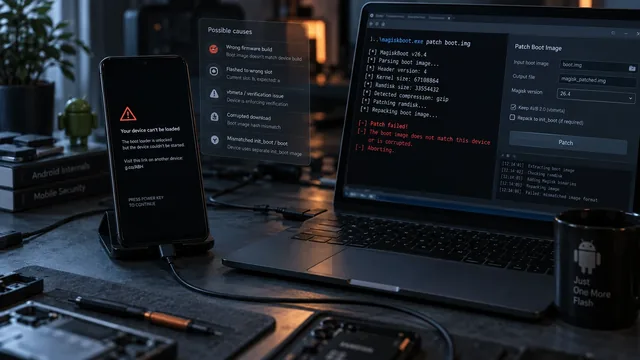
A bootloop after patching is a diagnosis problem, not a wipe problem. Six things commonly go wrong and the symptom usually tells you which one.