Android Keeps Booting Into Recovery: What to Check
Recovery is not a crash. The bootloader chose it. Six things cause that choice, and one of them is a stuck volume key you can rule out in ten seconds.
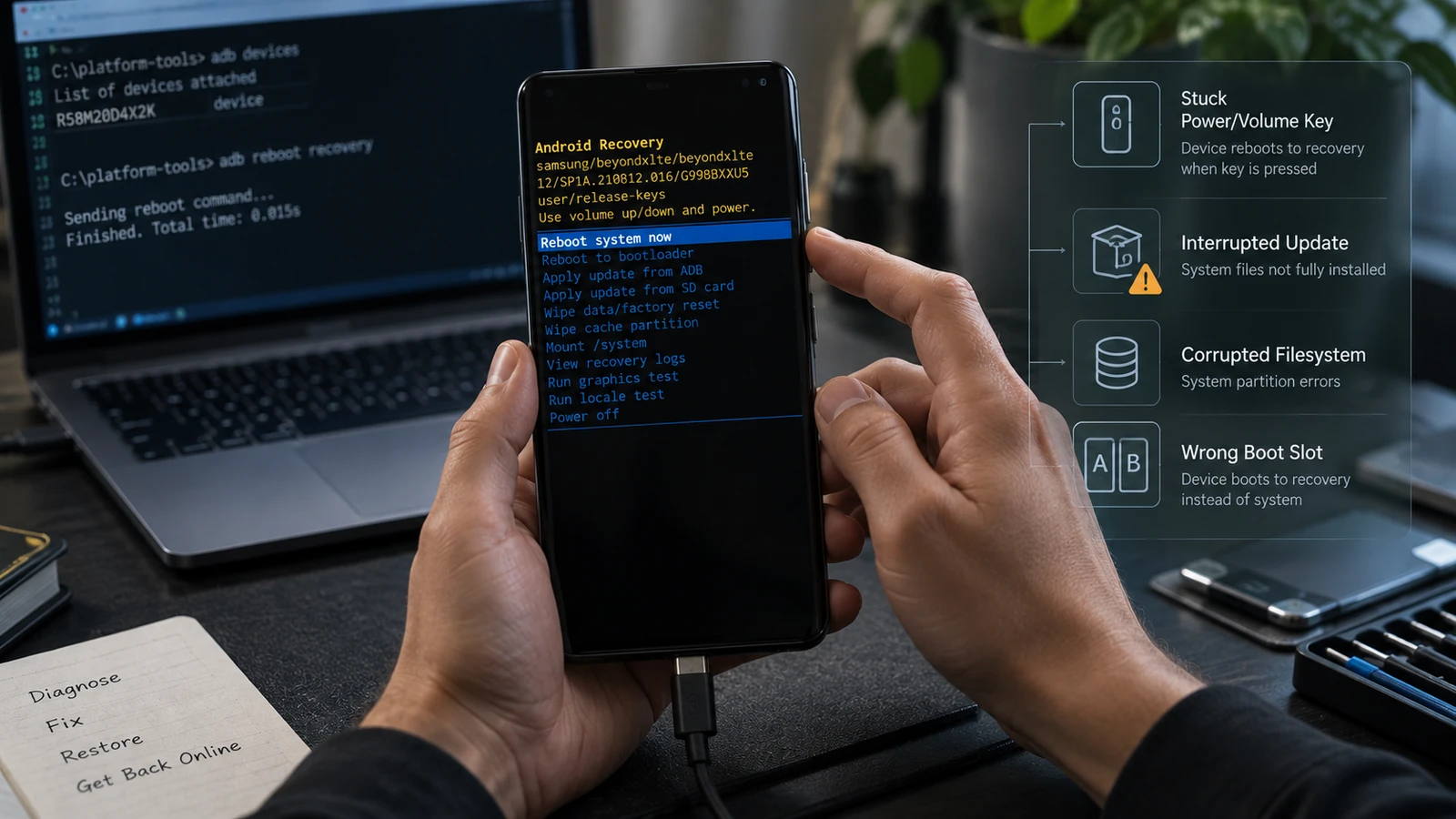
Table of Contents
- Recovery is not a failure state by itself
- Which recovery are you looking at?
- The six checks, in order
- 1. A stuck key, or something pressing one
- 2. Read the message on screen
- 3. An interrupted or failed update
- 4. The wrong slot, or a slot marked unbootable
- 5. A damaged boot or system image
- 6. Custom recovery or ROM mismatch
- Capture this before you touch the menu
- What each menu item actually does
- What this is not
- Frequently asked questions
Landing in recovery is not a crash. It is a decision the bootloader made, either because something told it to or because it could not load the system. Six things cause that decision. One of them is a stuck volume key you can rule out in ten seconds, and the rest are worth checking in order before you select anything in that menu.
Recovery is not a failure state by itself
Recovery lives in its own image, separate from Android, and it exists so that a device with a broken system still has somewhere to boot. A phone that reaches recovery has a working bootloader, working storage at least at the level needed to load recovery, and a working display and input path.
That is a lot of working parts. Compared to the states in soft brick vs hard brick, this is a good position to be in.
The problem is what is in the menu. Recovery contains the most destructive options on the device, presented as plain list items with no obvious visual warning. People arrive here stressed, scroll, and select something irreversible. Slow down at that step specifically.
Which recovery are you looking at?
Three different environments show up here and they are not the same thing.
Stock recovery. The manufacturer's recovery. A short menu: reboot, apply update, wipe options, and on some devices a log viewer. Usually plain text on black, sometimes with a small Android robot.
Custom recovery. A replacement such as TWRP or OrangeFox, if one was installed. Touch interface, far more options, including partition-level operations. If you see this and you did not install it, someone did.
Fastbootd. A userspace fastboot environment associated with recovery, introduced for devices with dynamic partitions. It says "fastboot" on screen but it is not the bootloader's fastboot. The Android Open Source Project describes it as a userspace daemon and mode, distinct from the bootloader implementation. On supported devices you can confirm which one you are talking to:
fastboot getvar is-userspaceA yes result means fastbootd. A no means bootloader fastboot. That distinction matters because the two environments handle different partitions, and a command intended for one can fail confusingly in the other. There is more on this in fastboot device not detected.
Knowing which environment you are in determines which instructions apply to you. A guide written for stock recovery will not match a TWRP screen.
The six checks, in order
1. A stuck key, or something pressing one
Mode selection at power-on is triggered by holding a hardware key. If a key is held down at boot, the device does what it is told, every time.
Check in this order: remove the case. Press and release each volume key and the power key, feeling for a clean click on each. Look for a key sitting flush or slightly depressed compared to its neighbour. Check whether a screen protector, a pop socket, or a swollen battery is applying pressure. Clear debris around the button edges.
This costs nothing, takes ten seconds, and it is a genuine cause rather than a formality. It is also the only cause on this list that has nothing to do with software, which is why it goes first.
2. Read the message on screen
Stock recovery displays specific strings and they are not decorative. The one worth recognizing:
This message typically comes with two options: try again, and factory data reset. That second option is irreversible and it is presented right next to the harmless one.
Do not select the reset option yet. The message means the system could not be loaded. It does not tell you why, and several of the causes below produce it without any actual data corruption. Choosing "try again" is non-destructive. Choosing the reset is not, and it cannot be undone.
Photograph the full screen text, including anything below the main message.
3. An interrupted or failed update
If the device was updating when this started, the update is the leading candidate. An OTA that failed partway can leave the system in a state the bootloader will not load.
On devices using A/B slots, updates install to the inactive slot and the device switches on reboot. A failed update in that model can leave the device attempting a slot that will not boot.
The non-destructive option here is applying the correct official update package, if your recovery offers an update-from-ADB or update-from-storage option and you can obtain the right package from the manufacturer. The package has to match the device and the build. Recovery will reject a package that does not verify, and that rejection is a feature. Do not go looking for ways around it.
4. The wrong slot, or a slot marked unbootable
Devices with A/B slots keep two copies of the system. The bootloader tracks whether the active slot boots successfully, and after a number of failed attempts it can mark the slot unbootable and fall back, which frequently means falling back to recovery.
This has a consequence people do not expect: repeatedly power-cycling a device that is failing to boot can itself cause the slot to be marked unbootable. The advice to "just keep restarting it" is not neutral on these devices.
If the device reaches fastboot, the active slot can be inspected and changed. Whether switching slots helps depends on what is in the other slot, which depends on your update history. On a device that recently updated, the inactive slot may hold the previous working build. On a device that has been running the same build for a long time, it may hold nothing useful.
5. A damaged boot or system image
If the boot image or the system partition is damaged, the bootloader has nothing valid to load and recovery is the fallback.
Causes include an interrupted flash, a wrong-build image, storage errors, or a modification that did not complete. If you flashed anything recently, that is where to look, and the Magisk failure diagnosis covers the specific version of this problem.
Restoring the correct image for the exact installed build is the non-destructive repair. Reflashing the whole device is the destructive one. They are not the same operation and the difference is your data.
6. Custom recovery or ROM mismatch
If a custom recovery is installed, compatibility becomes a live question. A custom recovery built for a different firmware version, a different partition layout, or a different variant of your model can fail to mount partitions, fail to decrypt user data, or interfere with normal boot.
The same applies to a custom ROM installed against a mismatched firmware base. Modern devices expect vendor, boot and system components to be consistent with each other, and a mismatch there can produce a device that boots to recovery and stays there.
If you installed either recently, the version compatibility is worth verifying against the project's own device page before anything else. Our TWRP installation guide covers what changed with modern partition layouts and where old instructions no longer apply.
Capture this before you touch the menu
Whatever you do next, record these first. If you end up asking anyone for help, this is the information that gets you a real answer instead of a generic checklist.
- A photo of the full recovery screen, including any text below the menu.
- Which recovery it is: stock, custom, or fastbootd.
- The exact model number, from the box, the SIM tray, or Settings if you can still reach it.
- The build number, if visible anywhere.
- What happened immediately before: an update, a flash, a drop, an app install, nothing.
- Whether the bootloader is unlocked.
- What
adb devicesshows while the device sits in recovery.
That last one is more useful than it looks. A device reachable over ADB from recovery has options that one that is not reachable does not.
What each menu item actually does
Recovery menus vary by manufacturer. These are the items you will commonly encounter and what they cost you.
| Menu item | Destructive? | What it does |
|---|---|---|
| Reboot system now | No | Attempts a normal boot |
| Reboot to bootloader | No | Restarts into fastboot or the bootloader menu |
| Apply update from ADB | No to user data | Sideloads a signed package. Rejected if it does not verify |
| Apply update from SD card | No to user data | Same, from external storage. Availability varies |
| Wipe cache partition | No to user data | Present only on devices with a separate cache partition. Many modern devices do not have one |
| Mount /system | No by itself | Makes the system partition available. Present in some recoveries |
| View recovery logs | No | Displays the log. Useful and safe |
| Wipe data / factory reset | Yes, irreversible | Erases the user data partition |
| Format data | Yes, irreversible | Erases user data and the encryption state |
| Repair or reformat a partition | Yes, irreversible for that partition | Present in custom recoveries. Read very carefully |
The three bold rows cannot be undone. On a device using file-based encryption, they do not merely delete files. They remove the key material those files were encrypted with, which means the data is not recoverable afterwards by any tool.
If you have not backed up and the data matters, do not select those options because a guide told you to. Here is what to do instead, and where the files are genuinely irreplaceable, our data recovery service assesses what is retrievable while the device still holds its keys.
What this is not
A device stuck in recovery is not automatically a soft brick, and the label does not help you. Recovery can be the result of a stuck button on an otherwise perfectly healthy phone. It can be a deliberate fallback after a failed update, on a device whose previous build is sitting intact in the other slot. It can also be genuine system damage.
Those three situations look identical from the recovery screen and have completely different outcomes. That is the argument for working the checks in order rather than jumping to the conclusion the menu is nudging you toward.
Frequently asked questions
Can I exit recovery without losing data? Selecting reboot is non-destructive and costs nothing to try. If the device returns to recovery, that tells you the bootloader is making the choice again and you move to the checks above. Nothing in the reboot itself puts data at risk.
Why does it go back to recovery after I reboot? Because the condition that sent it there is still true. Either an input is being held, or the bootloader still cannot load the system. Repeating the reboot does not change either condition, and on A/B devices repeated failed attempts can make the slot situation worse.
What does "Cannot load Android system" mean exactly? That the system could not be loaded. It does not identify the cause, and it does not confirm that your data is actually corrupt despite the wording. The reset option offered alongside it is irreversible and should not be the first thing you select.
Is wiping the cache partition safe? Where the option exists, it does not touch user data. On many modern devices the option is absent because there is no separate cache partition, which is why guides recommending it sometimes describe a menu you do not have.
My phone has TWRP and it will not decrypt my data. Is my data gone? Not necessarily. Failure to decrypt in a custom recovery is frequently a version compatibility problem between the recovery build and the device's encryption implementation, rather than damaged data. Formatting to get past it is irreversible and it destroys the data you are trying to reach. Do not do that to solve a mounting problem.
Does entering recovery void my warranty? Entering stock recovery is a normal maintenance function and does not modify the device. Installing a custom recovery is a different matter, and unlocking the bootloader to do so has its own consequences, which we cover here.
Related reading: Fix a bootloop without losing data · What each boot-screen symptom means · Soft brick vs hard brick · Magisk flash failed · Fastboot device not detected
Sources: Android Open Source Project, fastbootd and bootloader documentation.
Last verified: 26 August 2026. Recovery menu contents, key combinations and slot behaviour vary by manufacturer, model and Android version. Confirm against your device's official documentation.
More Android Guides
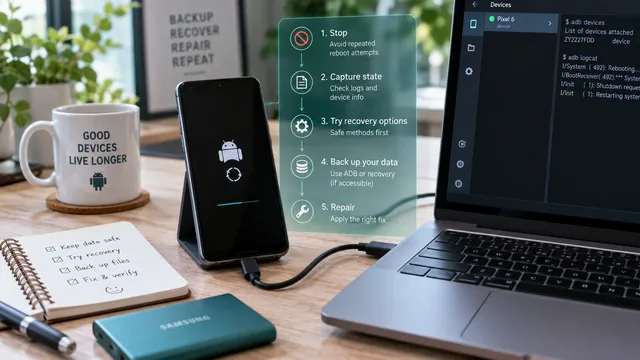
Fix an Android Bootloop Without Losing Your Data
A bootloop does not erase anything on its own. Every real data loss in a bootloop comes from the repair step. Here is the order that keeps your files intact.
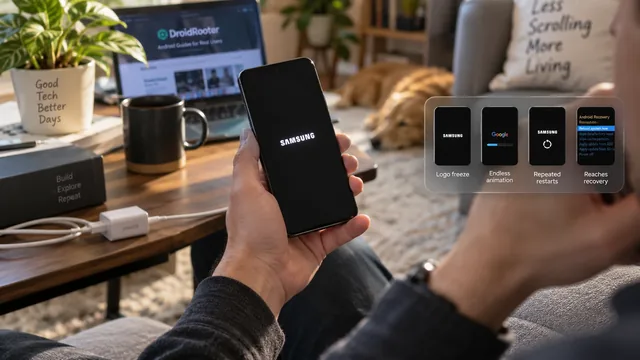
Android Stuck on the Boot Screen: What Each Symptom Means
Guides treat every boot failure as one problem. It is not. The stage your phone reaches before it stalls tells you where the fault sits and what it will cost to fix.
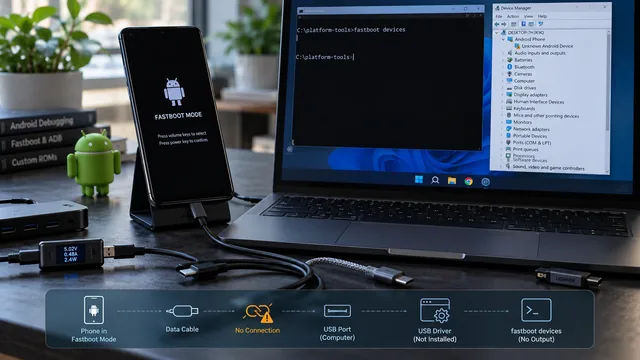
Fastboot Device Not Detected: Cable, Driver, USB and Mode Checks
An empty fastboot devices output has six possible causes and only one of them is the driver. Here is how to isolate each layer in order.