Magisk Flash Failed? Diagnose the Boot Image Before You Wipe
A bootloop after patching is a diagnosis problem, not a wipe problem. Six things commonly go wrong and the symptom usually tells you which one.
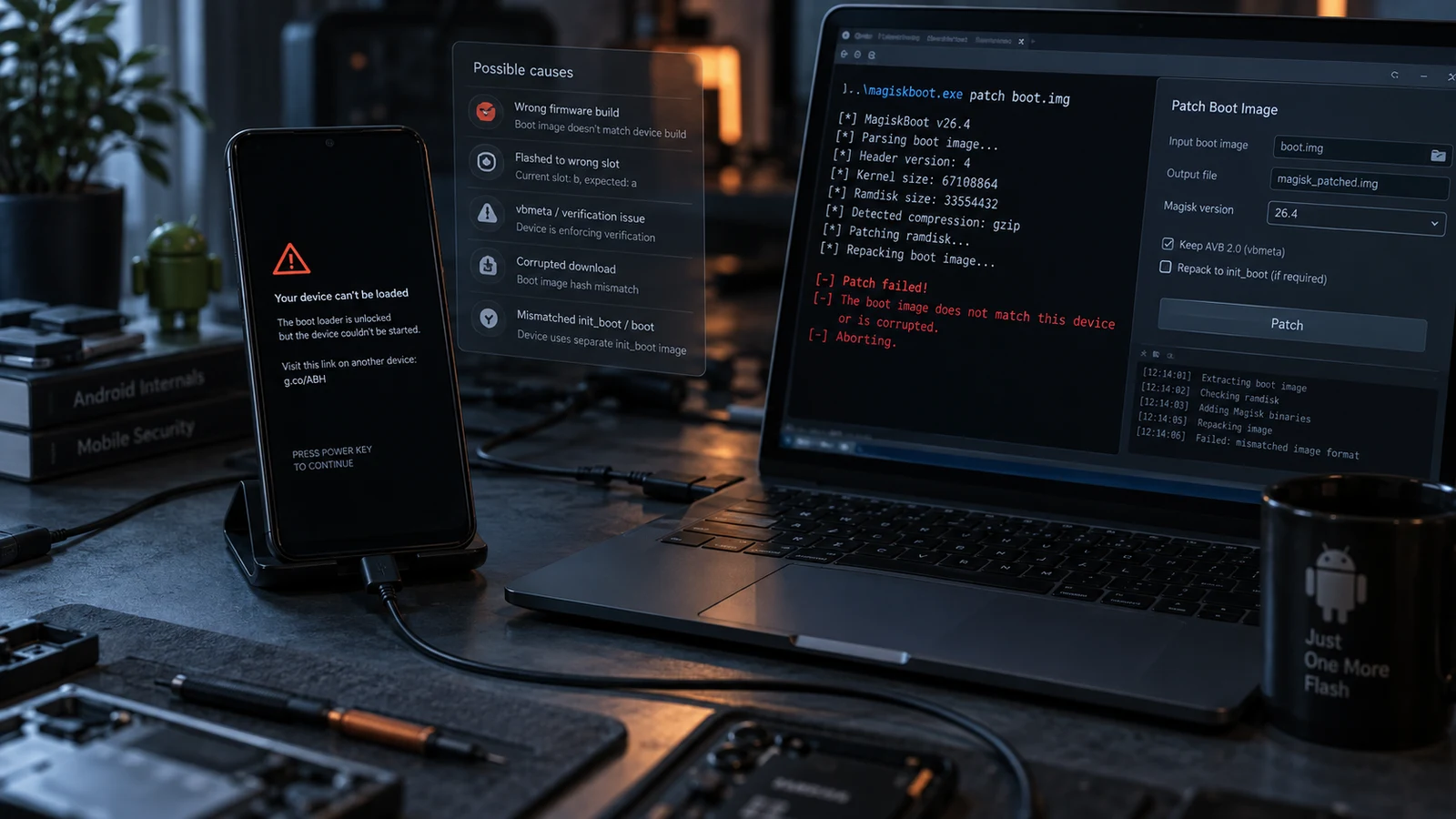
Table of Contents
A device that will not boot after a Magisk flash is a diagnosis problem, not a reset problem. Six things commonly cause it, the symptom you saw usually narrows it to one or two, and none of them are fixed by wiping your data. Work the elimination table below before you consider anything destructive.
The six candidate causes
These are candidates, not verdicts. More than one can apply at once, and which one is responsible depends on your device, your firmware build and what you flashed.
- A boot image from the wrong build. The image came from firmware that does not match what is installed on the device, even by one security patch level.
- You patched the wrong partition. On some devices the ramdisk lives in
boot, on others ininit_boot. Patching the wrong one produces a device that will not boot. - A verified-boot or vbmeta requirement was not met. The device's verification chain rejected the modified image, or the vbmeta state does not match what was flashed.
- The bootloader is locked, or was re-locked. A locked bootloader will not load a modified boot image, and flashing against one produces its own errors.
- The wrong slot. On A/B devices, the image went to the inactive slot, or the active slot changed between operations.
- A module or post-boot conflict. The patch worked, the device booted, and something running after boot brought it down.
Note what is not on that list: your user data. None of these six causes originate in the data partition, and none of them are addressed by erasing it.
Cause-elimination table
Find the row that matches what you actually observed.
| What you saw | Points toward | Points away from | First thing to check |
|---|---|---|---|
fastboot flash returned an error and refused | Locked bootloader, wrong partition name, tool or driver issue | Image content problems | Read the full error text. It usually names the reason |
| Flash succeeded, device sits on the logo, never animates | Wrong build image, wrong partition patched, verification rejection | Module conflict | Build match, then boot vs init_boot |
| Flash succeeded, device shows a verification or integrity warning then stops | vbmeta or verified-boot state mismatch | Module conflict | vbmeta requirements for your specific model |
| Flash succeeded, boot animation plays, then reboots on a loop | Module conflict, or a partially working patch | Locked bootloader | Boot with modules disabled |
| Booted fine once, then looped after installing a module | Module conflict, plainly | Everything else on this list | Remove the module, not the root |
| Device boots to the previous state as if nothing changed | Flashed to the inactive slot | Image content problems | Check and set the active slot |
| Samsung device, bootloop after flashing a patched AP | Partition and vbmeta interaction specific to that platform | Generic fastboot advice | Samsung's own flashing procedure, which differs from fastboot devices |
That table is doing the work that a numbered list of fixes cannot. The symptom narrows the candidates before you spend an hour on the wrong one.
Exact build matching
This is the cause worth spending the most time on, because it is the easiest to get wrong while believing you got it right.
A patched boot image is derived from a specific firmware build. The correct source is the firmware for your exact model number and your exact build number, which includes the security patch level. Not the same phone model in a different region. Not the same version number from a month earlier. The exact build currently installed on the device.
Where people go wrong:
- Model variants. The same marketing name frequently covers several distinct hardware variants with different firmware. A Snapdragon and an Exynos version of the same phone are different devices for this purpose. Carrier variants are different again.
- Region. Firmware for the same model differs by region, and images are not interchangeable.
- Build drift. The device took an update after you downloaded the firmware, or before. The build number on the device is the one that matters.
- Repackaged uploads. An image from a file host is an unknown quantity. Use the manufacturer's own distribution and verify checksums where they are published.
Check the installed build in Settings, under About phone, before you download anything. If the device will not boot, the build number may be visible in the bootloader or download-mode screen. Photograph it.
Our rootable device list covers which variants of which models have working root paths, and where the variant traps are.
boot.img and init_boot.img are not interchangeable
This one catches people who have rooted successfully before, because the rule changed partway through Android's history.
The Android Open Source Project documentation describes the change directly: devices launching with Android 13 have a new init_boot image containing the generic ramdisk, while devices that upgraded from Android 12 to Android 13 use the same architecture they did on Android 12.
The practical rule that follows:
| Device history | Ramdisk location | What to patch |
|---|---|---|
| Launched with Android 13 or later | init_boot | init_boot.img |
| Launched on Android 12 or earlier, later updated to 13 or later | boot | boot.img |
The trap is that a device running Android 14 today could be in either row, depending on what it shipped with. The Android version currently installed does not tell you which one applies. What matters is the version the device launched with.
Magisk's own installation documentation covers how to determine which applies to your device and notes that exceptions exist on some hardware. Read it for your specific device rather than assuming from the Android version on the box.
Getting this wrong produces a clean-looking flash and a device that will not boot, which is exactly why it belongs high on the elimination list.
The vbmeta question
Android Verified Boot checks the integrity of what the bootloader is about to load. A modified boot image will not match the expected hashes, and how the device responds to that depends on the manufacturer's implementation.
Some devices require the verification state to be adjusted for a modified image to boot. Some do not. On some devices, changing that state forces a data wipe on the next boot as a security measure. These behaviours are device-specific and they are not consistent across manufacturers or even across models from the same manufacturer.
That variability is why this article does not give you a vbmeta command to run. Running the wrong verification flags on a device that did not need them can cost you your data, and running none on a device that required them produces the bootloop you are already trying to fix. Find the requirement for your exact model, from the manufacturer's documentation or a device-specific source, before you touch it.
Destructive action warning: on some devices, flashing vbmeta with verification disabled triggers a full user data wipe on the next boot. This is irreversible. Confirm your device's behaviour before running it.
Getting back to a bootable state
If the device is in fastboot and you have the correct original boot image for the installed build, restoring it reverses the change. That operation writes to the boot partition only. It does not touch user data.
The requirements, in order:
- The device enters fastboot and a computer detects it. If not, start here.
- You have the original, unpatched image for the exact installed build, from the manufacturer's own distribution.
- You know which partition it belongs in, per the table above.
- You know which slot is active, if the device uses A/B slots.
Missing any of those, stop and get the missing piece rather than improvising. Flashing an approximately correct image to an approximately correct partition is how a recoverable state becomes a worse one.
When the module is the problem
If the device rooted successfully, ran normally, and only started looping after you installed a module, the diagnosis is straightforward and the fix does not involve the boot image at all.
Root frameworks provide ways to boot with modules disabled so you can remove the offending one. Magisk's documentation describes a key-press sequence during boot that starts the system with modules disabled. KernelSU documents its own rescue path, including running its command-line tool from a recovery shell to list, disable, or uninstall modules.
Both approaches target the module directory and leave user data alone. Use the current documentation for the root solution you actually installed, because this behaviour has changed across versions and older forum instructions may describe a mechanism that no longer exists.
Modules that hook early in the boot process, replace system components, or modify device properties carry more risk than modules that do not. Our Magisk modules guide covers which categories have a track record of boot problems and what to check before installing.
Not every failure state is recoverable
Being direct about the limits, because the rest of this article is optimistic and the limits are real:
- If the bootloader was locked with a modified boot image already flashed, the device may refuse to load anything and may not accept new flashes either. This state can be difficult or impossible to resolve without vendor tooling.
- If the flash was interrupted partway through writing a partition, the result depends on which partition and how far it got.
- If the device no longer enters fastboot and is not detected in any mode, you are outside what this article covers. Read soft brick vs hard brick to place the state.
- If the original firmware for your exact build is no longer distributed by the manufacturer, restoring the exact image may not be possible, and the alternatives generally involve a wipe.
We do not claim every failed Magisk flash is recoverable. Some are not, and the honest thing is to say which before you spend money finding out.
Frequently asked questions
Will flashing the stock boot image delete my data? Flashing the boot partition does not touch the user data partition. What deletes data is a reset, a format, a wipe flag, or a verification state change on devices where that forces a wipe. Read the operation, not the reassurance.
Can I just reflash the patched image and try again? Reflashing the same image will produce the same result. If the image is the problem, repeating it does not help. Change something specific based on the elimination table, then retry.
My device boots but Magisk says it is not installed. That usually means the flash went to the inactive slot, or the device booted from the other slot. Check which slot is active. It can also mean the patch applied to the wrong partition, which the boot vs init_boot section covers.
Do I need TWRP or a custom recovery to fix this? Not for a boot image restore, which is a fastboot operation. Custom recovery is useful for some module removal scenarios, and it introduces its own compatibility questions on modern partition layouts. Our TWRP installation guide covers where it fits and where it does not.
Is this specific to Magisk? No. Wrong-build images, partition confusion, verification requirements and slot mismatches apply to any boot image modification. KernelSU and APatch installations hit the same categories of failure with the same diagnostic logic, and the three approaches differ in ways worth understanding before you pick one.
Should I just factory reset and start over? Not as a first move. None of the six causes originate in the data partition, so a reset is unlikely to address any of them. It is irreversible, and on a device using file-based encryption it destroys the key material along with the data. Work the table first.
Related reading: Fix a bootloop without losing data · What each boot-screen symptom means · Soft brick vs hard brick · Fastboot device not detected · Essential Magisk modules
Sources: Android Open Source Project, generic boot partition documentation. Magisk official installation documentation. KernelSU official rescue documentation.
Last verified: 24 August 2026. Partition layouts, verified-boot requirements and flashing procedures vary by manufacturer, model and build. Confirm against your device's official documentation before running any command.
More Android Guides
OTA Update Failed on a Rooted Android: Diagnose Before Reflashing
A failed OTA on a rooted phone is normally the update engine doing its job. Work out what it objected to before you reach for a full firmware flash.
Soft Brick vs Hard Brick on Android: How to Tell
The word hard brick gets applied to at least four different states with very different outcomes. Two commands tell you which one you actually have.
Android Keeps Booting Into Recovery: What to Check
Recovery is not a crash. The bootloader chose it. Six things cause that choice, and one of them is a stuck volume key you can rule out in ten seconds.