OTA Update Failed on a Rooted Android: Diagnose Before Reflashing
A failed OTA on a rooted phone is normally the update engine doing its job. Work out what it objected to before you reach for a full firmware flash.
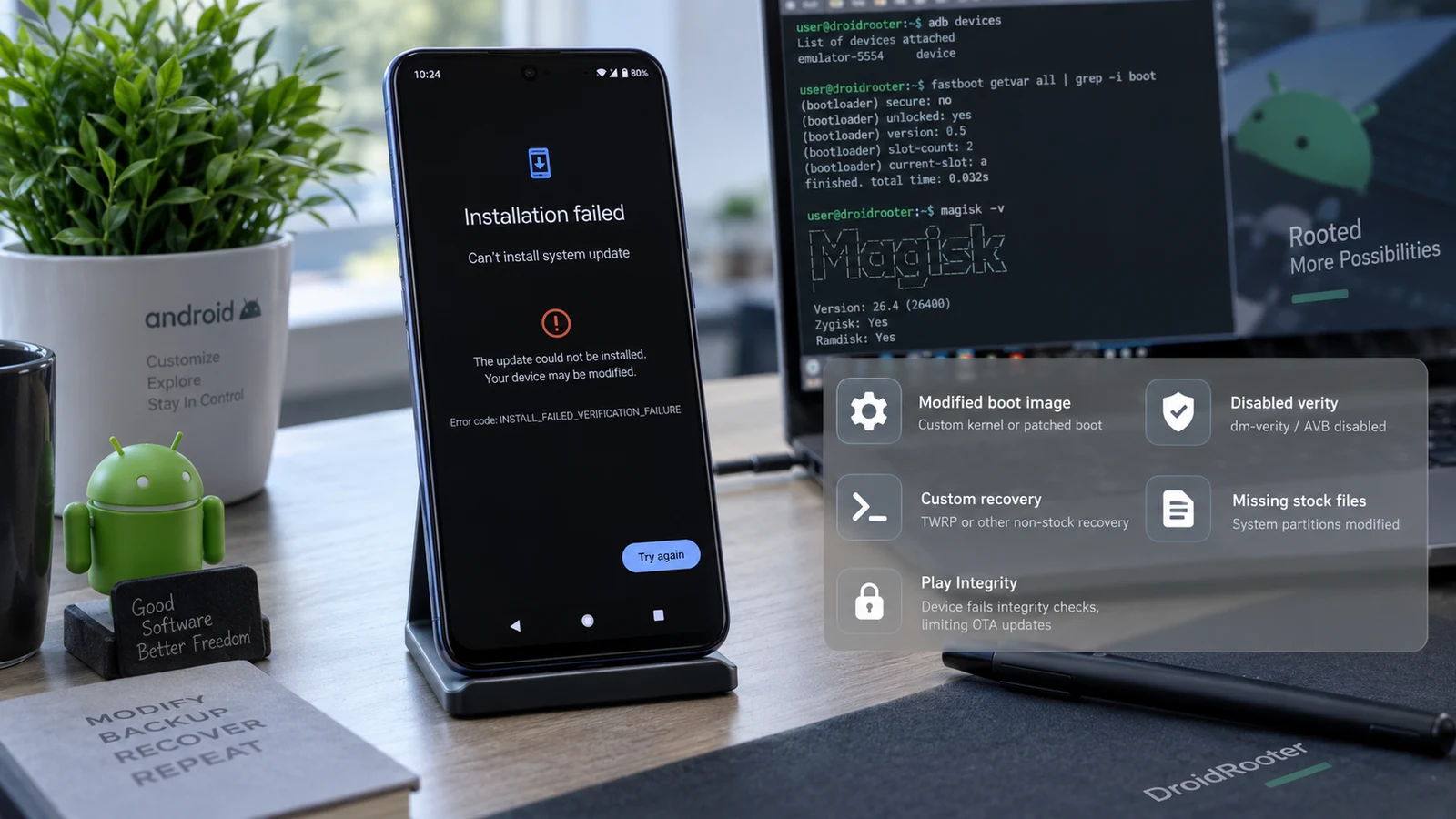
Table of Contents
- Why the update refused
- First: which partition scheme does your device use?
- The candidate causes
- The diagnosis order
- Read the failure
- Establish what is modified
- Restore before you update, not after
- Have the correct stock images ready
- Getting back to a known-good boot state
- Data risk, stated plainly
- Why there is no universal sequence
- Frequently asked questions
A rejected OTA on a rooted phone is normally the update engine working correctly. It checked the partitions it was about to update, found them modified, and stopped. That is a verification result, not damage, and the fix is to work out which partition it objected to rather than flashing a full firmware package over the top.
Why the update refused
Android's update process verifies the current state of the partitions it intends to replace before it writes anything. If a partition does not match what the update package expects, the update stops rather than producing an unpredictable half-updated system.
Root modifies the boot chain. That is the entire mechanism. So a rooted device presents exactly the mismatch that check is designed to catch.
This is a useful thing to internalize because it reframes the problem. The device is not broken. Nothing has gone wrong at the hardware level. Something is modified, the updater noticed, and it declined. Your job is to identify what.
Note also that partitions can be modified without root being the culprit. A custom recovery that was allowed to modify the system, a root-level app that changed a system file, or a leftover from a previous modification will produce the same rejection with root long since removed.
First: which partition scheme does your device use?
This determines nearly everything about your options, and it is the first question to answer.
A/B devices keep two copies of the relevant partitions. Updates install to the inactive set while you carry on using the active set, and the device switches over on reboot. This is the seamless update model.
Non-A/B devices have one copy. The update applies to the partitions you are currently running, generally through recovery.
There is no reliable shortcut for telling which you have from the marketing name. Check the partition layout on the device itself, or check the manufacturer's documentation for your exact model. Getting this wrong sends you down a procedure that does not apply.
The practical difference:
| A/B | Non-A/B | |
|---|---|---|
| Where the update lands | Inactive slot | The partitions in use |
| Fallback if it fails | The other slot is still intact | No second copy |
| Root preservation across updates | Possible, through the documented flow | Root generally has to be reapplied afterwards |
| Risk profile of a failed update | Lower, the working slot survives | Higher |
The candidate causes
These are candidates. Which applies depends on your device and what you installed.
1. A modified boot image. The most direct case. Root patched the boot chain, the updater checked it, it did not match.
2. Stock images were never backed up. Root frameworks can restore the original images before an update, but only if a backup exists. If the device was rooted by flashing a pre-patched image directly rather than through the framework's own install flow, there may be nothing to restore from, and the restore step will fail.
3. A modified system partition. A custom recovery that was permitted to modify the system, or a root app that wrote to it, leaves a change the updater will catch. This one persists after root is removed and confuses people badly, because they unroot, retry, and get the same rejection.
4. Modules interfering. Modules that alter system behaviour or system files can affect verification or the post-update boot.
5. Slot state. On A/B devices, the active slot at the time of the update, and which slot the update targeted, both matter. So does whether a previous update left the slots in an unexpected state.
6. Recovery state. A custom recovery in place of stock recovery changes what happens when the update tries to use it.
The diagnosis order
Work these before touching a firmware package.
Read the failure
Record the exact error, the point in the process it failed, and whether the device rebooted into recovery afterwards. An update that fails during download is a different problem from one that fails during verification, which is different again from one that installs and then fails to boot.
If the device now fails to boot rather than simply failing to update, stop here and switch to what each boot symptom means, because you are in a different situation.
Establish what is modified
Before you can restore something to stock, you need to know what is not stock. Boot, and possibly a separate image holding the ramdisk on newer devices, is the obvious one. System is the one people forget. Recovery is the one they forget second.
If you did not install the modifications yourself, or you inherited the device, assume you do not know and treat every candidate as open.
Restore before you update, not after
Magisk's own documentation describes the intended flow directly: restore the stock images from the backup Magisk made at install time, so that the pre-update verification passes, and specifically do not reboot after restoring, because rebooting at that point completes an uninstall. The device then takes the update normally, and root is reapplied afterward through the documented path.
Read the current documentation for whichever root solution you actually installed, and read it for your device's partition scheme. This flow has changed across versions, and the differences between A/B and non-A/B handling are significant. An instruction set from an old forum thread may describe a mechanism that no longer exists.
Magisk's documentation is also candid that on non-A/B devices there is no seamless approach, and that root will need to be reapplied manually with a computer afterwards. That is worth knowing before you start rather than discovering midway.
Have the correct stock images ready
If the framework's backup is missing, you need the original images for your exact model and your exact current build, from the manufacturer's own distribution. Not a close version. Not a different region. Build matching is where this goes wrong most often, and the failure mode is a device that flashes cleanly and does not boot.
Getting back to a known-good boot state
If the device still boots, you have time and options. Use them.
If the device no longer boots after the attempt, the priority changes to restoring a bootable state, and on an A/B device the other slot is the first thing to look at. Whether it holds something useful depends on your update history, but it costs nothing to check and it is non-destructive.
Restoring the correct original boot image writes to the boot partition only. It does not touch user data. That is the operation you want. A full firmware flash is a different operation with different consequences, covered below.
Data risk, stated plainly
Nothing in the diagnosis above touches user data. These things do:
| Action | Destructive? |
|---|---|
| Restoring stock boot images | No, boot partition only |
| Applying an official OTA | No to user data |
| Sideloading an official signed package | No to user data |
| Switching the active slot | No by itself |
| Factory reset from recovery or Settings | Yes, irreversible |
| Format data | Yes, irreversible |
A firmware flash with a wipe option or -w flag | Yes, irreversible |
| Re-locking or unlocking the bootloader | Yes, unlocking triggers a wipe |
The trap is the manufacturer flash script that includes a wipe step by default. People run it to repair a failed update and lose everything on the device. Open the script and read it. On a device using file-based encryption, a wipe removes the key material along with the data, so there is no recovery afterwards. Our bootloop without data loss guide covers why that changes the sequence you should follow.
If the device holds data you have not backed up, back it up now while it still boots. This is the moment, and it does not come back.
Why there is no universal sequence
Every manufacturer implements updates differently. Samsung's flashing model is not Google's. Xiaomi's is not OnePlus's. Devices within one brand differ by generation, by region, and by carrier variant.
So this article gives you the categories and the order to think in, not a command list. A command list would be wrong for some readers in a way that costs them their data, and there is no way to write one that is safe across the range.
Find the specific procedure for your exact model and build, from the manufacturer or from a maintained device-specific source. Our rootable device list covers where the per-brand differences are sharpest.
Frequently asked questions
Can I just skip the update? You can, and for one release it is a reasonable choice. Over time you accumulate missed security patches, and the gap between your build and current firmware widens, which makes the eventual update harder rather than easier.
Does unrooting fix it? Sometimes, and not always, which is the confusing part. If only the boot chain was modified, restoring it addresses the mismatch. If the system partition or recovery was also modified, removing root leaves those changes in place and the update still gets rejected.
My phone updated but lost root. Is that a failure? No, that is one of the documented outcomes, particularly on non-A/B devices. The update succeeded and the modification was replaced. Re-root afterwards through the normal path using the images for the new build.
The update installed and now it will not boot. Different problem, and a more urgent one. Go to what each boot symptom means and, if the device lands in recovery, what to check when it keeps booting there. Do not reset.
Should I use a manufacturer repair utility? Those tools generally download stock firmware and flash it, which is legitimate. What matters is whether that flash preserves user data on your specific device, and that is set by the firmware and the mode, not by the tool's interface. Check before you run it.
Is it worth staying rooted if updates keep failing? That is a judgement call about what root gives you. Our honest look at rooting risks covers the trade, including update friction, which is a real ongoing cost rather than a one-time one.
Related reading: Magisk flash failed · Fix a bootloop without losing data · Android keeps booting into recovery · Samsung Odin FAIL errors · Essential Magisk modules
Sources: Magisk official OTA upgrade documentation. Android Open Source Project A/B system updates documentation.
Last verified: 19 August 2026. Update mechanisms, partition schemes and manufacturer flashing procedures vary by model, region and build. Confirm against official documentation for your exact device.
More Android Guides
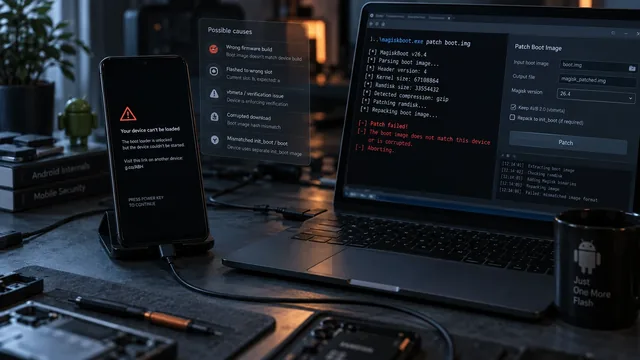
Magisk Flash Failed? Diagnose the Boot Image Before You Wipe
A bootloop after patching is a diagnosis problem, not a wipe problem. Six things commonly go wrong and the symptom usually tells you which one.
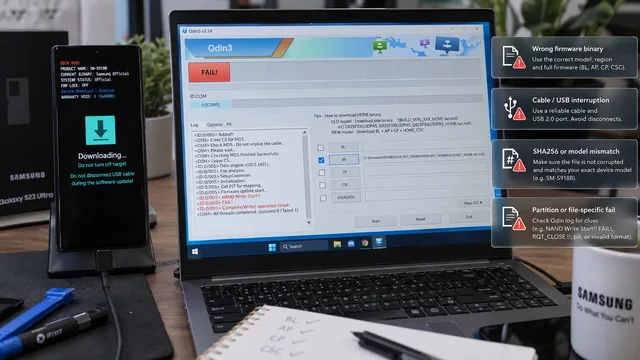
Samsung Odin FAIL Errors: Read the Log Before You Flash Again
Odin tells you where it stopped and on which file. That line is the diagnosis. Retrying with a different Odin version is not.
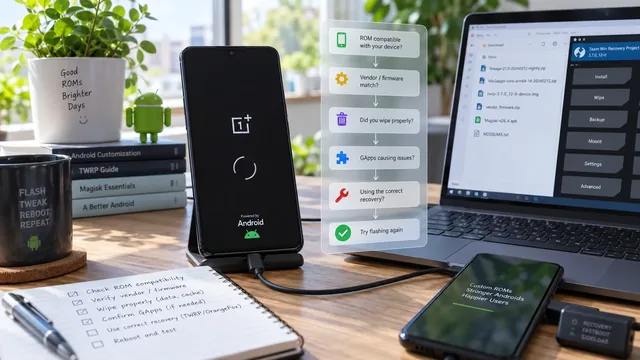
Bootloop After a Custom ROM Flash: What Usually Needs Checking
A ROM that will not boot is usually a mismatch between the ROM and something underneath it. The decision tree finds which layer disagrees.