Fix an Android Bootloop Without Losing Your Data
A bootloop does not erase anything on its own. Every real data loss in a bootloop comes from the repair step. Here is the order that keeps your files intact.
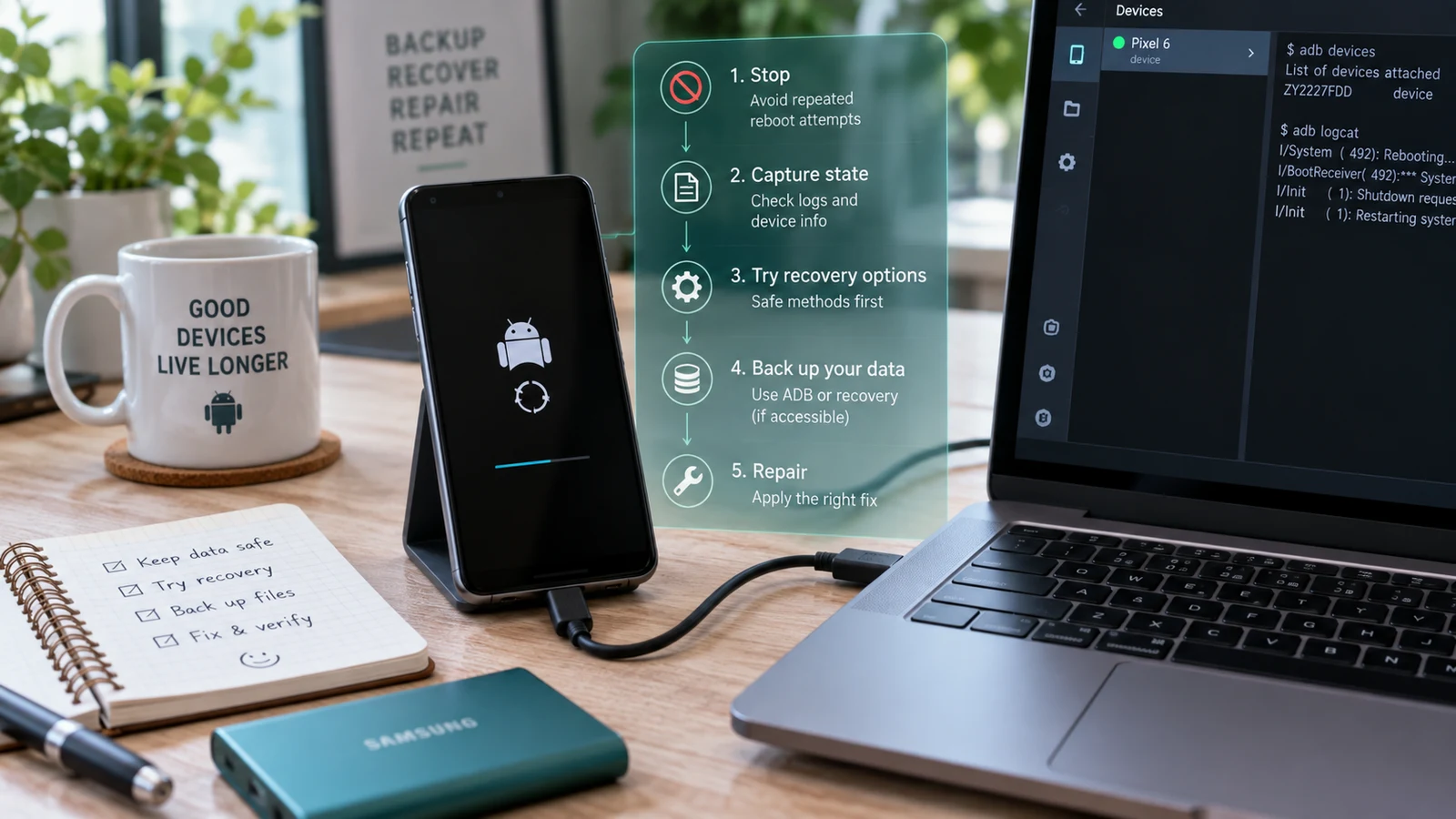
Table of Contents
- Before anything else: write down what happened
- Identify which bootloop you actually have
- The diagnostic order that protects your data
- Stage 1: stop rebooting it
- Stage 2: read the screen properly
- Stage 3: check whether a computer can see it
- Stage 4: safe mode, where the device supports reaching it
- Stage 5: disable the last thing you added, without wiping
- Stage 6: restore the correct boot image
- Stage 7: non-wipe restore paths, where they exist
- The actions that destroy data, named explicitly
- Why "wipe now, recover the files later" stopped working
- What the one-click repair tools are actually doing
- When to stop trying
- Frequently asked questions
A bootloop does not erase your files by itself. The data risk comes from the repair you choose. Work through the five non-destructive stages below before you touch anything labelled reset, wipe, or format, because on a device using file-based encryption a wipe destroys the encryption key and the data goes with it.
Before anything else: write down what happened
The single most useful diagnostic input is the last thing that touched the device. Not what you think caused it. What actually happened, in order, in the ten minutes before the loop started.
Write these down now, while you still remember them:
- The exact last action. An OTA update, a Magisk module install, a fastboot command, a custom ROM flash, an app install, a drop, a charge on an unfamiliar cable, nothing at all.
- Whether the device rebooted on its own or you rebooted it.
- The exact text on any error screen, including partition names and hex codes.
- Whether the bootloader is unlocked, and whether you have a copy of the stock boot image for the exact build the device was running.
- Whether the device is a Samsung, and whether Knox was already tripped.
That list decides the next three steps. A loop that started during an OTA is a different problem from a loop that started after a module install, and the recovery paths do not overlap much. If you skip this and start flashing, you are guessing.
Identify which bootloop you actually have
"Bootloop" gets used for five states that behave differently. Match yours before you act.
| What you see | What the device has already done | Where the fault likely sits | Data risk of the usual fix |
|---|---|---|---|
| Manufacturer logo, frozen, no animation, no restart | Bootloader ran, handed off, then stalled | Boot image, kernel, or verified-boot rejection | Low if you restore the correct boot image |
| Boot animation plays, then restarts, repeatedly | Kernel booted, userspace failed | System partition, a module, or an app that crashes at startup | Low to moderate |
| Reaches recovery every time instead of the OS | Bootloader marked the slot unbootable, or a key is stuck | Slot state, damaged boot or system, stuck hardware key | Moderate, recovery menus contain destructive options |
| Lands in fastboot or bootloader mode on every power-on | Bootloader could not find a bootable image | Missing or invalid boot image, wrong slot | Low if the correct image exists |
| Reboots at random after reaching the home screen | System boots, then something kills it | Overheating, failing battery, storage errors, a bad module | Low, this is often not a bootloop at all |
The last row matters. A device that reaches the launcher and then reboots is not in a bootloop, and treating it like one leads people to flash firmware over a hardware problem. If you can reach the home screen for even thirty seconds, you have options that a true bootloop does not give you, and random restarts point somewhere else entirely.
For a fuller breakdown of what each screen state implies, see what each boot-screen symptom means.
The diagnostic order that protects your data
Run these in sequence. Nothing in this section writes to your data partition.
Stage 1: stop rebooting it
Repeated power cycling is not neutral. On devices using A/B slots, the bootloader tracks failed boot attempts and can mark the active slot unbootable after a set number of tries, then fall back to recovery or to the other slot. That fallback is sometimes what you want and sometimes what strands you. Either way, you want it to happen because you chose it, not because you mashed the power button eleven times.
Put the phone on a charger, leave it alone, and read the rest of this before your next attempt.
Stage 2: read the screen properly
Photograph any error text. Error strings from stock recovery and from the bootloader are specific, and they narrow the problem faster than any other single input. "Cannot load Android system. Your data may be corrupt." means something different from a verified-boot failure message, which means something different again from a missing-image error in fastboot.
If there is no text, note the exact stage the boot reaches and how long it sits there before restarting.
Stage 3: check whether a computer can see it
Connect the device to a PC with a data-capable cable and check for a connection in each state it will enter.
adb devices
fastboot devices
adb devices returning a serial with recovery means the device is reachable from recovery, which is a strong position. fastboot devices returning a serial means you can flash partitions. Nothing detected at all changes the conversation, and that has its own checklist before you conclude anything about the phone.
Detection is the fork in the road. A device the computer can see has software recovery paths. A device nothing can see is a different category, covered in soft brick vs hard brick.
Stage 4: safe mode, where the device supports reaching it
Safe mode starts Android with third-party apps disabled. It is only reachable on a device that gets far enough into boot to accept the input, which rules it out for a logo freeze but not always for an animation loop.
The entry method varies by manufacturer and by Android version. On several devices, powering on and then holding the volume-down key from the moment the logo appears until the lock screen loads will do it. On others it is a long-press on the power-off option once the device is running. If your device never reaches the point where it accepts input, safe mode is not available to you and you should move on rather than repeating the attempt.
If safe mode works, the phone boots, and it stays up, a third-party app is a strong candidate. That is a good outcome: you can back up and uninstall from inside a running system.
Stage 5: disable the last thing you added, without wiping
If the loop began after a root module install, the module is a candidate and there are ways to remove it that leave your data alone.
Magisk supports booting with all modules disabled through a key-press sequence during boot, and its own documentation describes both that safe mode behaviour and the module directory layout. KernelSU documents a comparable rescue path, including running its command-line tool from a recovery shell to list, disable, or uninstall a module. Both approaches target the module, not the data partition.
Which one applies depends on what you installed. Read the project's own current documentation for your root solution rather than a forum post from three years ago, because this specific behaviour has changed across versions. Our Magisk modules guide covers which modules have a track record of causing boot failures.
Stage 6: restore the correct boot image
If the loop started immediately after you flashed a patched boot image, restoring the original image for that exact build is the direct reversal. It writes to the boot partition only and does not touch user data.
The word "exact" is carrying the weight in that sentence. The image must match the build the phone was running, not the model, not the region, not a close firmware version. A boot image from a different build can produce the same bootloop you are trying to fix. Diagnosing a failed Magisk flash covers how build mismatches present and how to confirm you have the right file.
Never source that image from a random upload. Use the manufacturer's firmware for your exact model and build, from the manufacturer's own distribution, and verify the checksum where one is published.
Stage 7: non-wipe restore paths, where they exist
Some devices support reflashing system partitions without touching userdata. Samsung's flashing workflow distinguishes between firmware packages that wipe and those that do not, depending on which components are loaded. Devices with a full official firmware image sometimes support flashing individual partitions rather than running a whole-device script.
This is genuinely device-specific and the details change between models and between firmware releases. Do not carry a procedure from one brand to another. If you cannot confirm from the manufacturer's own documentation that a given path preserves userdata, treat it as destructive until proven otherwise.
Our firmware and ROM service exists for exactly this step, where the right answer depends on the specific model, chipset and firmware build in front of you.
The actions that destroy data, named explicitly
Everything in this table is irreversible. There is no undo, no recycle bin, and no recovery tool that restores what these remove on a modern encrypted device.
| Action | Where you encounter it | What it does |
|---|---|---|
| Wipe data / factory reset | Stock recovery menu | Erases the user data partition. Irreversible. |
| Factory reset from Settings | Running system | Same result, initiated from the OS. Irreversible. |
| Format data | Custom recovery, some stock recoveries | Removes user data and the encryption state. Irreversible. |
fastboot -w | Command line, and bundled inside some flash-all scripts | Wipes userdata as part of the operation. Irreversible. |
| Vendor flash tools with a full-wipe option selected | Manufacturer flashing utilities | Depends entirely on which mode you pick. Read the mode, not the button label. |
| Changing verified-boot state on some devices | vbmeta flashing with verification flags | On certain devices this forces a data wipe on next boot. Behaviour varies by manufacturer. |
The trap is the flash-all script. Several manufacturer and community flashing scripts include a wipe step by default, and people run them expecting a system repair. Open the script and read it before you run it. If it contains a wipe instruction and you have not backed up, you are about to make an irreversible decision by accident.
Why "wipe now, recover the files later" stopped working
This is the part that older guides get wrong, and it changes the entire risk calculation.
Android's encryption model moved. The Android Open Source Project documentation states that devices launching with Android 10 or higher must use file-based encryption, that Android 10 through 12 supported full-disk encryption only for devices upgrading from Android 9 or lower, and that Android 13 removed support for full-disk encryption entirely.
Under file-based encryption, your files are encrypted with keys tied to your credential and to hardware-backed key storage. A factory reset removes that key material. The blocks on the flash chip may physically still hold ciphertext afterwards, but without the key that ciphertext is not your photos. It is noise.
This is why the recovery-app model from the 2014 era does not transfer. Those tools scanned unencrypted storage for file signatures. That approach assumed a threat model Android no longer uses. Any tool promising to scan a factory-reset modern Android device and return your photos is describing something that the encryption design is specifically built to prevent.
The practical rule that follows: on a modern Android device, the recoverable moment is before the wipe, not after it. If your data matters, the time to involve data recovery is while the device still holds its keys.
What the one-click repair tools are actually doing
Search results for this problem are dominated by paid repair utilities promising a bootloop fix without data loss. It is worth understanding the mechanism they use, because the marketing and the mechanism do not always line up.
The general pattern is: the tool identifies your model, downloads a stock firmware package, and flashes it using the same manufacturer flashing protocol you could invoke yourself. That is a legitimate operation. The question is what the flash package does to userdata on your specific device, and the answer is set by the firmware and the flash mode, not by the tool's interface.
Two things follow. First, on devices where the stock firmware flash wipes userdata, the tool wipes userdata, regardless of what the landing page says. Second, whatever the tool does, you can usually do with the manufacturer's own utility and the manufacturer's own firmware, at no cost, with full visibility into which mode you selected.
None of this makes those tools useless. It does mean you should read what the flash does before you accept a promise about your data.
When to stop trying
Stop and get a second opinion at any of these points:
- The device stops being detected by the computer after an action that previously worked.
- You are about to run a command or select a menu item whose data behaviour you cannot confirm.
- The error text references a partition you did not intentionally modify.
- You cannot locate the stock firmware for your exact model and build from the manufacturer's own distribution.
- The device is warm to hot while looping, or the loop began after physical or liquid damage.
- The data on the device is not backed up and matters to you.
That last one is not a technical criterion, and it is the one people ignore. If the phone holds the only copy of something you cannot replace, the correct next step is not another flash attempt. It is stopping while the encryption keys are still intact.
Frequently asked questions
Does a bootloop delete my photos? No. The loop is a boot failure, not a storage operation. Data loss in a bootloop comes from the repair step, which is why the order of operations in this article matters.
Can I copy files off a phone that will not boot? Sometimes. If the device is reachable over ADB from a running system, yes. From stock recovery, ADB access is limited to specific commands and does not give you a general file pull. From a custom recovery, more is possible, but on an encrypted device the recovery still needs to decrypt the data partition, which is not guaranteed to work.
Is wiping the cache partition worth trying? On many modern devices there is no separate cache partition to wipe, and the option is not present in the recovery menu. Where the option exists, it is non-destructive to user data and costs you nothing to try. Where it does not exist, the guides recommending it were written for a partition layout your device does not use.
My phone loops only sometimes and boots on the third try. What is that? Intermittent boot failure points toward marginal hardware more often than corrupted software: power delivery, storage errors, or thermal issues. Software repair does not usually fix an intermittent fault, and repeatedly reflashing a device with a failing storage chip can make things worse.
Will unlocking the bootloader let me rescue my data? No, and it will do the opposite. Unlocking the bootloader triggers a data wipe on Android devices as a security measure. If your bootloader is currently locked and your data matters, unlocking is not a recovery step. Our bootloader unlock guide covers what the unlock actually does.
How long should I let it loop before deciding it is stuck? After a system update, a first boot can legitimately take a long time while the system optimizes apps. Give it a full charge cycle of patience on the first attempt. After that, repetition is not adding information.
Related reading: Android stuck on the boot screen: what each symptom means · Soft brick vs hard brick · Magisk flash failed · Android keeps booting into recovery · Complete boot loop recovery guide
Sources: Android Open Source Project, encryption documentation. Magisk official installation and troubleshooting documentation. KernelSU official rescue documentation.
Last verified: 18 August 2026. Partition layouts, recovery menu options and firmware flash behaviour vary by manufacturer, model and build. Confirm against your device's official documentation before running any command in this article.
More Android Guides
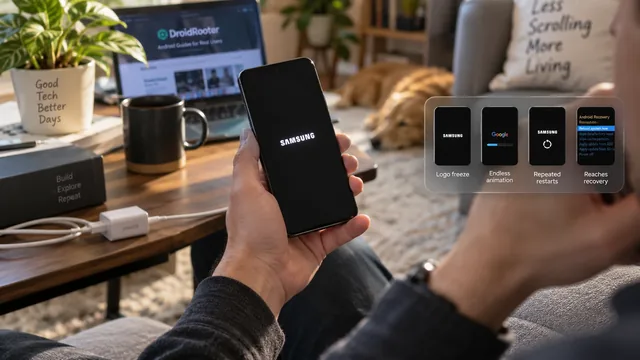
Android Stuck on the Boot Screen: What Each Symptom Means
Guides treat every boot failure as one problem. It is not. The stage your phone reaches before it stalls tells you where the fault sits and what it will cost to fix.
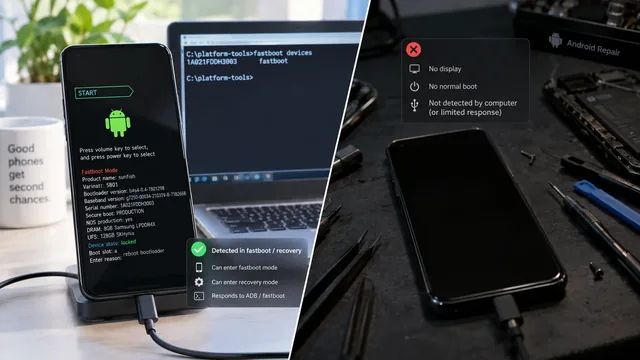
Soft Brick vs Hard Brick on Android: How to Tell
The word hard brick gets applied to at least four different states with very different outcomes. Two commands tell you which one you actually have.
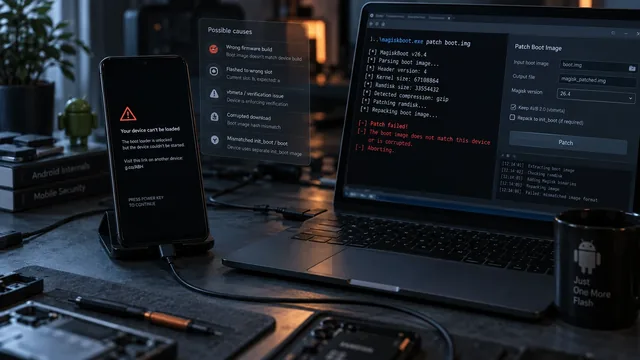
Magisk Flash Failed? Diagnose the Boot Image Before You Wipe
A bootloop after patching is a diagnosis problem, not a wipe problem. Six things commonly go wrong and the symptom usually tells you which one.