Your Device Has Been Unlocked and Can't Be Trusted: What the Orange State Warning Means
That orange screen is Android's unlocked-bootloader warning, not malware. Learn what each colour means, when it signals a real fault, why it usually cannot be removed, and what relocking really does to your data.
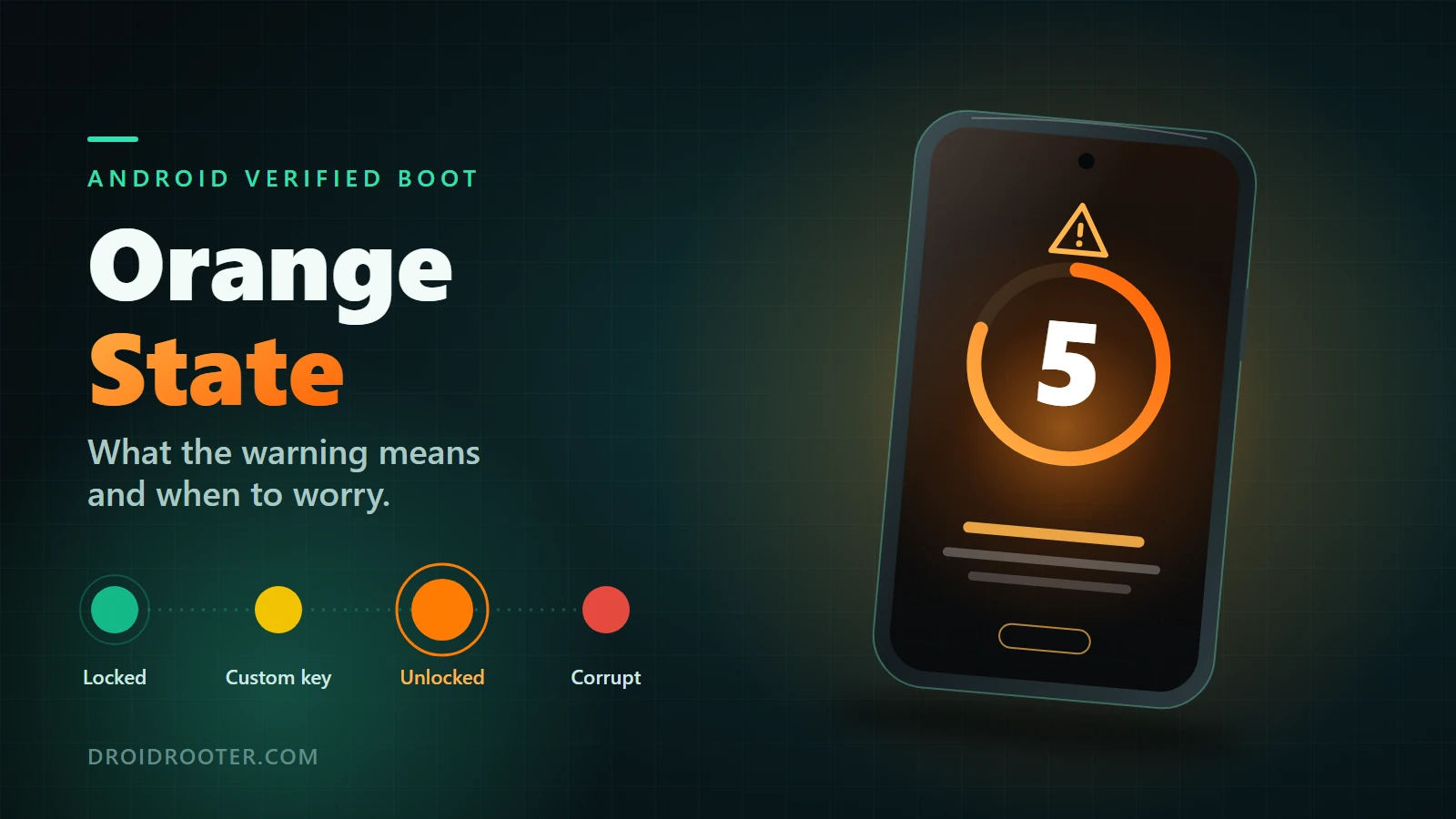
Table of Contents
- Quick test: did you do this, or did it happen to you?
- What the screen is saying, in plain English
- The exact wordings you may see
- Why "5 seconds" and not 10?
- Verified boot colours: green, yellow, orange, red
- Checking the state without guessing
- Is the orange warning harmful?
- What it means on your phone: brand by brand
- Google Pixel
- Samsung
- OnePlus, Oppo, Realme and MediaTek phones
- Motorola
- Xiaomi, Redmi and POCO
- Nothing and CMF
- Can you remove the orange warning? The honest answer
- What forum "removal" methods actually do
- When the warning means a real problem
- Boot loop with the orange screen
- Why mismatched vbmeta breaks boot
- Troubleshooting matrix
- A used phone that shows orange
- How to relock the bootloader safely, and what it does to your data
- Pre-flight checklist
- Google Pixel
- Samsung
- Xiaomi
- OnePlus, Oppo, Realme, Motorola, Nothing
- Custom ROM users
- After a relock
- When relocking will not work or will not help
- Should you relock or stay unlocked?
- Frequently asked questions
- Is "Your device will boot in 5 seconds" a virus or hack?
- Can I turn the orange state message off?
- Does relocking remove the warning?
- Will relocking fix a boot loop?
- Is orange state the same as yellow?
- Why does my phone say "different operating system"?
- Does unlocking the bootloader void the warranty?
- Does the orange screen slow boot?
- The bottom line
- Sources and project documentation
You restart your phone and a screen appears before the logo: "Orange State. Your device has been unlocked and can't be trusted. Your device will boot in 5 seconds." Or it says your phone "has loaded a different operating system." Is it hacked? Is it dying? Did the last update break something?
Most likely none of those. This is Android's verified-boot warning for an unlocked bootloader. Android's own documentation says a phone should show it on every boot while the bootloader is unlocked, and the screen reports the phone's state; it is not a finding of malware.1 You cannot turn it off in Settings. The only real way to make it go away is to relock the bootloader onto software the bootloader trusts, and relocking erases the phone.13
That is the short version. The long version matters because the same screen sits in front of two very different situations: a healthy phone behaving as designed, and a phone that really is stuck. This guide helps you tell them apart, explains what each colour means, and is straight about what you should and should not try.
Sources checked November 5, 2026. This is a documentation-based guide, not a claim that DroidRooter tested every listed phone, ROM or tool. Maintainers' and vendors' statements are attributed to them.
Jump to: Quick test · What it says · The four colours · Is it harmful? · By brand · Can you remove it? · When it is a real problem · Relocking safely · Relock or stay unlocked? · FAQ
Quick test: did you do this, or did it happen to you?
Work down this table and stop at the first "yes".
| Question | If yes | Next step |
|---|---|---|
| Did you unlock the bootloader yourself (to root, flash a ROM or test)? | The warning is expected. | Nothing is wrong. Decide whether to relock or stay unlocked. |
| Did you install a custom ROM such as LineageOS or /e/OS? | Expected on most devices. | Check your ROM's install guide before you consider relocking.1314 |
| Did you buy the phone second-hand or refurbished? | A previous owner left it unlocked or flashed. | Read the used-phone section before you keep it. |
| Did the screen appear with no unlocking by you? | Unusual. | Contact the manufacturer. Google's guidance when you did not change the OS is to contact support.6 |
| Does the phone reboot repeatedly or never reach the home screen? | The warning is a bystander; something else is failing. | Go to when it is a real problem. |
| Does it say "no valid operating system"? | Red screen. The phone cannot start the firmware on it. | You need stock firmware, not a relock. See the matrix. |
If none apply and you are sure nobody ever unlocked the phone, treat it as a fault and contact the maker. Do not follow a removal video.
What the screen is saying, in plain English
Android's boot process checks that each stage of the software is the one the manufacturer (or a key you set) signed. This is verified boot. Android 7.0 began strictly enforcing it, and Android 8.0 and later use Android Verified Boot (AVB).5 After the check, the bootloader should tell you the result: nothing if all is well, otherwise a coloured warning.1
The orange screen means one thing: the bootloader is unlocked, so the phone will run software nobody checked. The reference text in Android's documentation reads: "The bootloader is unlocked and software integrity cannot be guaranteed. Any data stored on the device might be available to attackers. Do not store any sensitive data on the device."1
Read that as a security notice about the state of the phone, not a report about something found on it.
The exact wordings you may see
Google publishes suggested text, and manufacturers can word and style their own screens. That is why you can see several phrasings for what is, structurally, the same state.
| What you see | Typical colour | What it means | Source status |
|---|---|---|---|
| "Orange State / Your device has been unlocked and can't be trusted / Your device will boot in 5 seconds" | Orange | Bootloader unlocked | Wording reported by users on OnePlus and MediaTek-based phones; not AOSP's text14 |
| "The bootloader is unlocked and software integrity cannot be guaranteed..." | Orange | Bootloader unlocked | AOSP suggested text1 |
| "Your device is loading a different operating system" | Yellow | Locked, running software signed with a key the user set | AOSP suggested text1 |
| "Your device is corrupt. It can't be trusted and may not work properly." | Red | dm-verity corruption found, in eio mode |
AOSP suggested text1 |
| "No valid operating system could be found. The device will not boot." | Red | The bootloader found nothing it can start | AOSP suggested text1 |
People often search for "has loaded a different operating system." AOSP's suggested wording is "is loading," so treat the "has loaded" form as user phrasing rather than a quote.
Why "5 seconds" and not 10?
AOSP says the orange screen is dismissed after ten seconds and the device continues booting. Pressing the power button pauses the countdown, and the on-screen text changes from "Press power button to pause" to "Press power button to continue." Pressing again resumes boot.1
So a five-second countdown is not in Google's reference. It is probably a manufacturer's own implementation choice, but that is our inference: we found no official statement from OnePlus, Oppo, Realme or MediaTek on which models use five seconds. What we can say is that the phrase appears in user reports and in at least one project-run forum thread.14
One more detail from AOSP surprises people. A red eio screen can be followed by the orange one. The documentation notes that "other warning screens might follow," and its example is exactly that: orange after red on an unlocked phone.1 Two warnings in sequence do not mean two separate faults.
Verified boot colours: green, yellow, orange, red
Everything in this table comes from Android's boot-flow documentation. The bootloader also hands the state to Android as androidboot.verifiedbootstate (green, yellow or orange), which is how the system learns about it.1
| State | Bootloader | What it means | What you see | Typical cause | What to do |
|---|---|---|---|---|---|
| Green | Locked, manufacturer key | Everything verified | Nothing | Stock phone | Nothing |
| Yellow | Locked, custom key set | Software verified against a key someone chose | Ten-second screen with an "OS fingerprint" | A custom OS installed with a user key on a device that supports it | Expected; make sure you know who set the key |
| Orange | Unlocked | Nothing is enforced | Ten-second screen on every boot | Unlocked on purpose, or left unlocked by a previous owner | Decide: stay unlocked or relock onto stock |
Red (eio) |
Either | dm-verity found corrupted data | Red screen; you must press power; the phone powers off after 30 seconds if ignored | Bad flash, mismatched images, storage corruption | Restore matching stock firmware |
| Red (no OS) | Either | No valid OS | Red screen; will not boot; powers off after 30 seconds | Wiped or wrongly flashed system | Restore stock firmware |
A few clarifications that save people hours:
- Yellow is not a milder orange. Yellow means the bootloader is locked and the image matched a key someone deliberately installed. Orange means the bootloader is unlocked.1
- Some devices support a user-set key; many do not. AOSP names the Pixel 2 as the example of this approach. The key is flashed as
avb_custom_keyonly while unlocked and can be erased withfastboot erase avb_custom_key.34 GrapheneOS documents using it on current Pixels.12 Do not assume your phone supports it. - No warning on a locked phone is the expected state. AOSP describes a locked device with no warning as being in the manufacturer-produced state.3
Checking the state without guessing
On many phones the green, yellow or orange value shows up in Android as the ro.boot.verifiedbootstate system property, which you can read over ADB. AOSP documents the underlying boot option, not that property name, and we did not run it on a test device, so treat a missing or odd value as "no information", not as a verdict. The on-screen warning is the authoritative signal.
Is the orange warning harmful?
The screen itself is harmless. It is a message. The state behind it has real costs, and it helps to be exact about them.
Security. With an unlocked bootloader, anyone with physical access can flash a different system. Android's text says data might be available to attackers and tells you not to store sensitive data on the device.1 Google's Android Help page for the warning says it in plainer terms: if you changed the operating system on purpose you can keep going, but your data may be exposed, and Google recommends restoring the original OS.6
It is not a virus. Nothing in the documentation presents the orange screen as evidence of malware. If you did not unlock the phone and cannot explain it, that is a different concern, covered in the quick test.
Apps that check device integrity. Google's Play Integrity documentation says that on Android 13 and higher, the MEETS_DEVICE_INTEGRITY verdict rests on hardware-backed proof that the bootloader is locked and the OS is a certified manufacturer image.8 MEETS_BASIC_INTEGRITY is a weaker tier that does not require that proof. So an unlocked phone can lose features in banking, wallet or streaming apps that ask for device integrity even though the phone works normally otherwise. Our Play Integrity guide explains the tiers.
Warranty. This is vendor-specific. Motorola's unlock portal states that after you receive an unlock code the device is no longer covered by Motorola's warranty.10 Xiaomi's FAQ says unlocking invalidates the official warranty.11 Samsung records a permanent hardware marker, which our Samsung Knox guide covers. We found no Google statement on warranty for Pixel unlocking, so we make no claim either way. Consumer law differs by country; check your local rules and the terms that came with your phone.
Boot time. Unless paused, the orange screen adds up to ten seconds per boot in Android's reference design, and less on phones whose maker chose a shorter countdown.1
What it means on your phone: brand by brand
We fill in only what a source supports. Where we could not verify something, the table says so. The site's own bootloader unlock service page takes the same stance: no brand-support table without current, exact-device evidence.
| Brand | What the warning is | Can you turn it off? | Relock route | How we verified |
|---|---|---|---|---|
| Google Pixel | Standard AOSP orange, or yellow with a custom key | Only by relocking; yellow stays with a custom key | Google's factory image, then fastboot flashing lock |
Google and AOSP pages76 |
| Samsung | Separate from the Knox marker; wording not verified | Not verified | Community sources describe a Download-mode lock option; Samsung's own text not found | Knox doc; community directory915 |
| OnePlus / Oppo / Realme / MediaTek phones | The "Orange State... 5 seconds" wording | Not verified | No primary relock documentation verified | User reports, one project forum14 |
| Motorola | Not verified for current models | Not verified | Unlock via Motorola's portal; relock path not verified | Portal page lists only old models10 |
| Xiaomi / Redmi / POCO | An "unlocked" notice at startup, per Xiaomi's FAQ | Relock only | Official package with the lock script | Xiaomi FAQ, MIUI-era11 |
| Nothing / CMF | Not verified | Not verified | Not verified | No official page reached |
Google Pixel
Pixels follow Android's reference closely. Google's Android Help page, reached through g.co/ABH, tells you what to do: if you changed the OS on purpose you can continue, with the exposure caveat above; Pixel owners are told to flash the latest factory image; if you did not change anything, contact support.6
Google's factory image page says to relock the bootloader after flashing and warns that installing a factory image erases all data. It also says sideloading a full OTA image is typically easier and safer.7 That page carries an anti-rollback warning that matters before you relock: a bootloader update on some Pixel generations can leave a phone unbootable if a failing build triggers a fallback to the older slot.7 Read the current notice there before flashing anything.
If you use GrapheneOS, which sets a custom key, you will see the yellow screen with a key fingerprint instead of orange. That is by design.12 Our Pixel root guide and GrapheneOS install guide cover those paths.
Samsung
Two things get mixed up: the unlocked-bootloader notice and the Knox Warranty Bit. Samsung describes the Knox bit as a one-time hardware e-fuse that permanently marks a non-approved configuration, and says its rollback-prevention fuses make it impossible to return to older bootloader versions.9
Be careful about the link between unlocking and Knox. Samsung's Knox documentation gives examples such as an unsigned kernel; it does not name bootloader unlocking as the trigger. The connection between unlocking and the tripped bit comes from secondary sources, so we attribute it to them rather than to Samsung.15
We found Samsung's boot-notice wording and the Download mode "lock bootloader" option only in community material, so we give no Samsung relock step list. Community write-ups also say the warning images live in a partition some people edit to hide them. We do not describe that, for the reasons in the removal section.17 See the Samsung root guide for the supported unlock route.
OnePlus, Oppo, Realme and MediaTek phones
This is where the "Your device will boot in 5 seconds" wording appears most. The one project-run thread we could open is an /e/OS forum post about a OnePlus 8 showing the exact orange text after installing /e/. A reply from an /e/ community member there calls it expected, a feature of verified boot on a custom ROM.14
A secondary blog says the orange screen began appearing on OnePlus phones with OxygenOS 13 on unlocked, Magisk-rooted devices, and that MediaTek phones have long shown orange and red states. Treat that as a signal, not a fact; we could not confirm it from OnePlus.16
What we could not verify: any official OnePlus, Oppo or Realme page about the five-second countdown, which models and OS versions show it, or a primary relock procedure. We also do not cover the "unlock tool" and "orange state fix" videos aimed at MediaTek Oppo, Vivo and Infinix phones. They edit partitions the maker never documented, and we found no vendor source for any of them. Our OnePlus root guide covers the supported unlock route.
Motorola
Motorola's portal says that after you receive an unlock code the device is no longer under Motorola's warranty, that the device may stop working as intended, that features may be disabled, and that your carrier may prohibit unlocking.10 The page lists only a few old models (Photon Q and RAZR HD/M/i), so check Motorola's current terms for yours. We could not confirm the warning wording on current Moto phones. See the Motorola guide.
Xiaomi, Redmi and POCO
Xiaomi's official FAQ says unlocked phones show an "unlocked" note at startup, and that Developer options shows the device unlocking state (the label differs by software version). To relock, it tells you to reinstall the official package using the "delete and lock" script, flash_all_lock.bat. Unlocking is tied to your Xiaomi account, capped at three devices per account in that text, and the unlock rights are time-limited.11
Three cautions about that FAQ. It is written for MIUI, not HyperOS. It says unlocking invalidates the warranty. And it contradicts itself in places, including on whether every user has unlock rights and whether data is cleared on unlock for every model, which does not match Android's wipe rule. Xiaomi's policy has also been changing, so we quote no waiting periods. Community sources report a "System has been destroyed" screen after a wrong relock; that is community-sourced only.15 See the Xiaomi guide.
Nothing and CMF
The only documents we opened were community-run archives. We found no official Nothing page on unlocking, relocking or the screen wording, so we say nothing more.
Can you remove the orange warning? The honest answer
Not from Settings, and not while the bootloader is unlocked on a phone that follows Android's reference. There are three real outcomes:
- Relock onto the stock OS. The bootloader is locked and the image is signed by the manufacturer, so the state is green and no screen appears. Data is wiped.3
- Relock onto a ROM that supports a custom key. The screen turns yellow and stays. Some Pixels running GrapheneOS-type setups work this way.123
- Stay unlocked and accept the screen. The cost is up to ten seconds per boot plus the security and integrity trade-offs above.
What forum "removal" methods actually do
Search results are full of methods that swap or patch the bootloader, edit the boot-logo images in a partition, or run a vendor-specific flashing tool. We do not publish those steps and we do not link to them. The reasons are practical:
- They rewrite partitions the phone reads before anything else. A bad write there often cannot be recovered without service tools.
- They are device- and firmware-specific. The same file on a neighbouring model or build can brick the phone.
- Anti-rollback is real. Samsung describes fuses that stop older bootloaders from running,9 and LineageOS's FAQ warns that relocking can leave a device unusable.13
- The sources are community posts, not manufacturers.
- Hiding a security notice does not change the security state. The phone is still unlocked.
If a video promises a "5-second fix" that is really a bootloader edit, the risk is entirely yours. If you own the phone and want the warning gone for good, the supported route is relocking onto stock, covered below.
When the warning means a real problem
The screen can be a bystander. Many people land here because their phone shows orange and will not finish booting, and they blame the warning. Usually it is just the first thing the bootloader prints before a different failure.
Boot loop with the orange screen
If the phone shows orange, starts booting, then restarts and repeats, the loop is something else: a bad flash, mismatched boot, init_boot or vbmeta images, or a failed update. Our boot loop guide and the no-data-loss version cover the recovery ladder, and phone stuck on boot screen covers logo freezes. If you flashed a custom ROM, read bootloop after a custom ROM.
Why mismatched vbmeta breaks boot
AVB keeps verification data in vbmeta. On a locked phone, a boot image that does not match what vbmeta expects fails verification. The AVB documentation describes androidboot.veritymode with an eio mode (error out) and a restart mode, plus a HASHTREE_DISABLED flag that sets verity to disabled.4 That is why anyone flashing patched images is told to use the exact image for their build; see getting the correct boot or init_boot image.
Troubleshooting matrix
| What you see | Likely cause | First safe check | Fix |
|---|---|---|---|
| Orange, then a normal boot every time | Unlocked bootloader | Nothing to fix | Optional: relock |
| Orange, then logo, then reboot loop | Bad flash, mismatched images, failed update | Note what you flashed last | Boot-loop guides above; restore matching stock |
| Red "device is corrupt", then orange | dm-verity error on an unlocked phone; AOSP says other screens can follow1 | Did you patch or flash a boot image? | Restore the image that matches your build |
| Red "no valid operating system" | Nothing bootable | Can you reach fastboot or recovery? | Stock firmware; see soft vs hard brick |
| Orange after an update on a custom ROM | ROM update on an unlocked phone | Is the bootloader still unlocked? | Expected; follow the ROM's update guide |
| Orange on a phone you just bought used | Seller left it unlocked or flashed | See used phone | Return it, or relock onto stock |
| "Corrupt" after you relocked | Relocked onto an OS the bootloader does not trust | Do not relock again | Flash full stock firmware for that exact model |
| Boots only to recovery or fastboot | Missing or damaged boot partition | Try another cable and port; see fastboot not detected | Stock firmware; recovery loop guide |
The "corrupt after relock" row rests on a single search snippet from a OnePlus Community thread that we could not open. Treat it as a signal only.
A used phone that shows orange
AOSP says an unlocked-to-locked transition is expected on used development devices, and that every state transition wipes the data partitions.3 For a phone you bought, treat orange as a question for the seller:
- Ask why it is unlocked and what is installed.
- Check that the previous owner removed their accounts. If the phone demands an account sign-in or activation you cannot complete, return it. Do not look for a way around it.
- Check the IMEI against a blacklist service before you keep it.
- Prefer a phone relocked onto stock. If it is orange and the seller cannot explain it, return it.
How to relock the bootloader safely, and what it does to your data
Warning. Locking the bootloader deletes all personal data. Android's own lock confirmation screen says so.1 Never lock while a custom OS is installed unless that ROM's install guide for your exact device tells you to. Locking onto software the bootloader does not trust can leave the phone unusable.13
Pre-flight checklist
- Back up everything. Locking wipes the phone.
- Get the full stock firmware for your exact model and region, and never an older version than the last one installed. Anti-rollback applies: Samsung describes rollback-prevention fuses,9 Google's factory image page warns about Pixel bootloader updates,7 and a community directory notes the same for Fairphone.15
- Boot stock to the home screen once before locking, if the vendor's guide says to.
- Keep OEM unlocking enabled. Android's path is Settings > System > Developer options > OEM unlocking.2 GrapheneOS adds that you turn it off only after the first boot on the locked phone; that is GrapheneOS-specific guidance, not a general Android rule.12
- If you set a custom AVB key on a Pixel, erase it before going back to stock:
fastboot erase avb_custom_key.4
Google Pixel
Do these in order. Step 4 wipes the phone.
- Back up your data.
- Restore the phone to Google's factory image (or use Android Flash Tool). Installing a factory image erases all data.7
- Boot to the setup screen once and confirm the phone starts. This is a precaution, not a Google requirement.
- Reboot to the bootloader and run
fastboot flashing lock. On the phone, use the volume keys to choose "Lock the bootloader" and press power. The confirmation times out after 30 seconds and the command fails if you do nothing.1
Expected result: no warning on the next boot, a freshly set-up phone, and a locked bootloader. Google's page says to relock after flashing.7 The exact Developer options label can vary with Android version and manufacturer skin. This sequence is documentation-based; we did not run it on a test device.
Samsung
We give no Samsung lock procedure. We did not find Samsung's own documentation for the Download-mode lock option, and the Knox bit stays tripped regardless, since it is a one-time e-fuse.9 Follow Samsung's documentation for your model or contact Samsung support.
Xiaomi
Xiaomi's FAQ says to reinstall the official package with the "delete and lock" script, flash_all_lock.bat.11 A community directory warns that "clean all and lock" on a custom ROM is the known way to brick these phones.15 Never run it with a custom ROM on the phone.
OnePlus, Oppo, Realme, Motorola, Nothing
We verified no primary relock documentation for these brands, and we will not print commands we cannot source. Use the maker's firmware for your exact variant, and treat any relock instruction from a video as unverified.
Custom ROM users
Relock only if your ROM's guide for your device says so. LineageOS says few devices allow relocking, fewer work afterwards, and relocking can leave a device unusable.13 /e/OS says relocking is limited to official builds on devices whose guide includes the step, and many listed devices cannot be locked.14 GrapheneOS, by contrast, documents locking on supported Pixels.12
After a relock
Expect green, no screen, wiped data, and no root or Magisk. Google's documentation ties the device-integrity tier to a locked bootloader and a certified image, so a relocked stock phone is the case where that tier can apply.8 Whether a particular banking or wallet app then works depends on the phone, the app and its policy.
When relocking will not work or will not help
- A custom ROM with no relock support for your device. Relocking can leave the phone unusable.13
- A boot loop. Relocking does not repair anything. Fix the firmware first.
- A tripped Knox bit. It cannot be reset by relocking.9
- The wrong or older firmware. Anti-rollback can block the install or the boot.
- A phone with an account lock or carrier restriction you cannot clear. Relocking is not the issue and will not solve it.
Should you relock or stay unlocked?
| Your situation | Suggestion | Why |
|---|---|---|
| Daily phone with banking and tap-to-pay | Relock onto stock | Device integrity needs a locked bootloader8 |
| Custom ROM tinkerer | Stay unlocked, accept the screen | Relocking may brick it13 |
| Selling the phone | Restore stock, relock, then wipe | The buyer sees no warning |
| Warranty or repair visit | Restore stock first and ask the maker | Warranty terms differ and the Knox bit stays |
| You want root | Expect the screen | Most rooting routes need an unlocked bootloader; see the unlock guide |
| Not sure | Change nothing | The warning itself is harmless, and relocking wipes the phone |
Banking and wallet apps may still fail on a custom ROM even after relocking, because the ROM is not a certified manufacturer image.
The bottom line
The orange screen is a notice, not a diagnosis. It means the bootloader is unlocked and Android is telling you nothing is being verified. If you unlocked the phone, it is working as designed. If the phone also loops or shows red, the warning is only the messenger, and you need matching firmware.
The honest answer on removal is that you usually cannot, short of relocking onto stock, and relocking wipes the phone and can brick one running a custom ROM. Decide whether you need the lock, back up, and use the maker's own firmware.
If you are stuck, begin with the boot loop guide and the unlock guide. If you want a second opinion on a phone you own, send your exact model, region, firmware build and what you flashed through our bootloader unlock service page or the contact page. We will tell you whether a responsible path exists. We do not guarantee recovery, we cannot remove the warning remotely on an unlocked phone, and we do not help with phones you do not own or that are locked to an account you cannot access.
Sources and project documentation
-
AOSP: Verified Boot flow. YELLOW, ORANGE and RED screens, timers, suggested text, lock and unlock confirmation, and
androidboot.verifiedbootstate. ↩↩↩↩↩↩↩↩↩↩↩↩↩↩↩↩↩↩↩↩↩ -
AOSP: Locking and unlocking the bootloader. OEM unlocking path, unlock ability, factory reset on unlock. ↩
-
AOSP: Verified Boot device state. State transitions wipe data; user-settable root of trust; used development devices. ↩↩↩↩↩↩
-
AOSP: Android Verified Boot README.
avb_custom_key,androidboot.veritymode,HASHTREE_DISABLED. ↩↩↩ -
AOSP: Verified Boot. Strict enforcement from Android 7.0; AVB from Android 8.0. ↩
-
Android Help: warning about your device's operating system (
g.co/ABH). Guidance for a changed and an unchanged OS. ↩↩↩↩↩ -
Google: Factory images for Pixel devices. Relock after flashing, data erased, sideloading OTA, and the anti-rollback notice. ↩↩↩↩↩↩
-
Android Developers: Play Integrity verdicts. Device integrity and locked-bootloader proof on Android 13 and higher. ↩↩↩
-
Samsung Knox: hardware-backed security. Warranty Bit e-fuse and rollback-prevention fuses. ↩↩↩↩↩↩↩
-
Motorola: Unlock your bootloader. Warranty and carrier statements; lists only older models. ↩↩↩↩
-
Xiaomi: unlocking FAQ. MIUI-era wording on the unlocked notice, relock script, warranty and account limits. ↩↩↩↩↩
-
GrapheneOS: CLI install. Locking, verified boot,
fastboot flashing lock, OEM unlocking timing. ↩↩↩↩↩ -
/e/OS: devices where the bootloader can be relocked and a OnePlus 8 orange-state thread. Community forum; replies are from community members. ↩↩↩↩↩↩
-
CustomDroid: relock bootloader. Independent directory; secondary source for the Samsung Download-mode, Xiaomi and Fairphone notes. ↩↩↩↩↩
-
DroidWin: OnePlus Android 13 orange state. Secondary blog, cited only for the OxygenOS 13 timing claim. We do not endorse its removal steps. ↩
-
DroidWin: Samsung bootloader warning. Secondary blog, cited only for where the warning images are said to live. We do not endorse its steps. ↩
Frequently asked questions
Is "Your device will boot in 5 seconds" a virus or hack?
Not by itself. It is the unlocked-bootloader warning, a countdown before the phone continues booting. Android documents the screen as a standard part of verified boot.1 If you never unlocked the phone, ask the seller or the maker.
Can I turn the orange state message off?
Not in Settings. The supported fix is relocking onto software the bootloader trusts, which wipes the phone. Methods that patch bootloader partitions carry brick risk, and we do not publish them.
Does relocking remove the warning?
Yes, if the phone runs software the bootloader trusts. On stock firmware the screen disappears. With a custom key it turns yellow. Data is wiped either way.1
Will relocking fix a boot loop?
No, and relocking on the wrong software makes it worse. Fix the boot first with matching stock firmware.
Is orange state the same as yellow?
No. Orange means unlocked. Yellow means locked with a user-set key.1
Why does my phone say "different operating system"?
That is the yellow screen: the phone is locked and running an OS signed with a custom key. Google's g.co/ABH page explains what to do.6
Does unlocking the bootloader void the warranty?
Does the orange screen slow boot?
By Android's reference, by up to ten seconds. Pressing power pauses the countdown and pressing again continues; it does not skip the screen.1 Some makers use a shorter timer.
Related guides
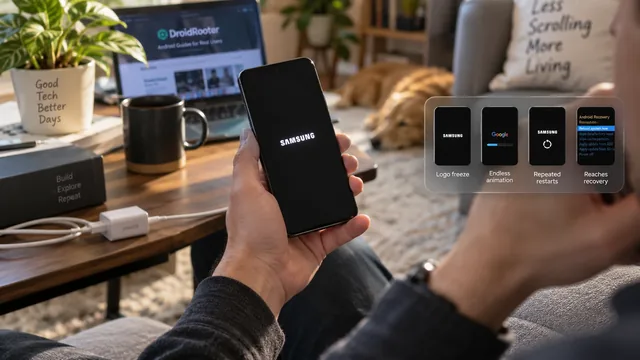
Android Stuck on the Boot Screen: What Each Symptom Means
Guides treat every boot failure as one problem. It is not. The stage your phone reaches before it stalls tells you where the fault sits and what it will cost to fix.
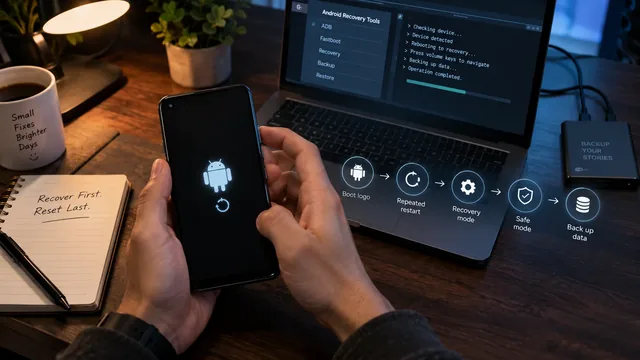
Android Stuck in Boot Loop — Complete Recovery Guide
Android stuck in a boot loop? Complete recovery guide — safe mode, recovery cache wipe, brand-specific combos, factory reset, and when the phone is bricked.
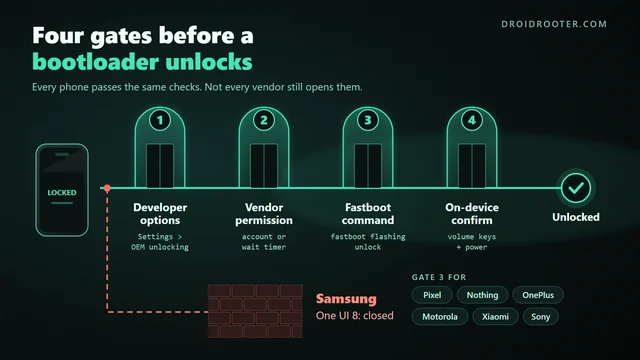
How to Unlock the Bootloader on Android: What Still Works in 2026
Check whether your exact phone can be unlocked in 2026, then follow the verified steps for Pixel, Nothing, OnePlus, Motorola, Sony and Xiaomi. Samsung One UI 8, greyed-out OEM unlocking and unlock APKs get straight answers.